Is Blackboard User-Friendly? Greenville Tech Insights
Learning management systems have become essential infrastructure for educational institutions, and Blackboard stands as one of the most widely deployed platforms in higher education. Greenville Technical College, like many institutions across the country, relies on this system to facilitate course delivery, student engagement, and academic collaboration. But the critical question remains: is Blackboard actually user-friendly? This comprehensive review examines the platform’s interface design, functionality, accessibility features, and real-world usability from both student and educator perspectives at Greenville Tech and beyond.
The student experience at Greenville Tech depends heavily on how intuitively they can navigate their learning environment. Blackboard’s evolution over the past decade has brought significant improvements, yet challenges persist. Understanding these nuances helps prospective students, current users, and institutional decision-makers evaluate whether this platform truly delivers on its promise of seamless educational technology integration.
Blackboard Interface Design and Navigation
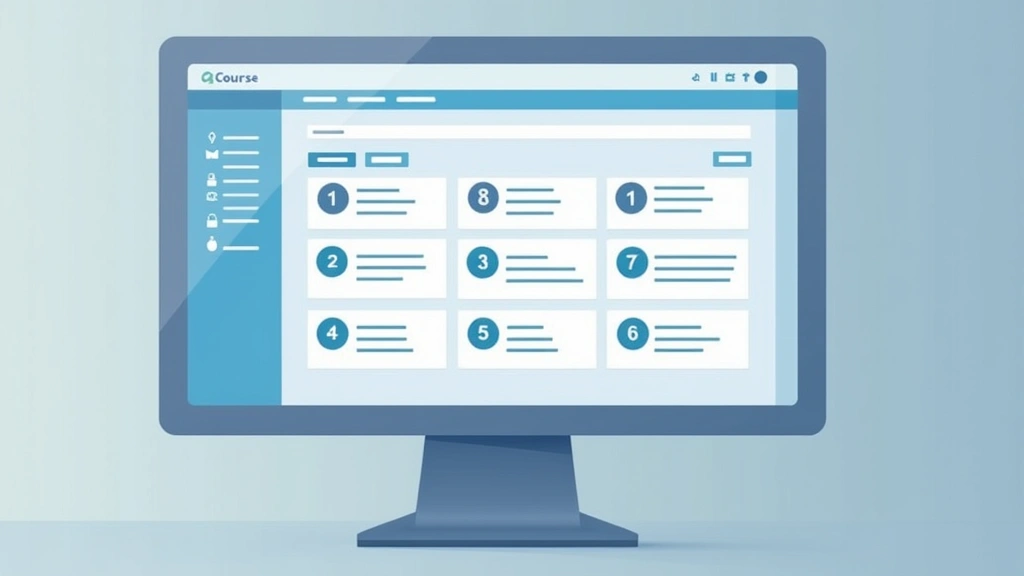
The user interface represents the first impression students and faculty have of any learning management system. Blackboard’s current iteration presents a dashboard-centric approach that aims to consolidate essential information into a single view. When you first log into Blackboard at Greenville Tech, you’re greeted with customizable tiles displaying your enrolled courses, upcoming deadlines, and recent announcements.
The navigation structure follows a left-sidebar menu pattern that has become standard across modern web applications. This design choice offers several advantages: it provides persistent access to key functions like courses, grades, and communications without requiring users to hunt through dropdown menus. However, the sidebar can feel cluttered during the initial learning curve, particularly for first-time users unfamiliar with learning management systems.
Blackboard’s color scheme and typography present adequate contrast ratios, meeting basic accessibility standards outlined in the Web Content Accessibility Guidelines. The platform uses consistent iconography throughout, though some icons require tooltips to understand their function—a minor friction point for intuitive navigation.
Course pages display content in a hierarchical structure that mirrors traditional textbook organization. Instructors at Greenville Tech can arrange modules sequentially, allowing students to progress through material in a logical order. This linear approach works well for structured courses but can feel restrictive for non-traditional learning paths. The ability to customize course layout provides flexibility, yet requires instructor effort to implement effectively.
One notable strength is the breadcrumb navigation that appears at the top of pages, helping users understand their location within the course hierarchy. This feature significantly improves navigation usability, reducing the cognitive load required to orient oneself within the platform.
Mobile Accessibility and Responsive Design
In today’s mobile-first world, Blackboard’s mobile experience directly impacts user satisfaction. The platform offers a dedicated mobile app available on iOS and Android, supplemented by responsive web design for browser access. This dual approach acknowledges that students access learning materials from various devices throughout their day.
The mobile app prioritizes essential functions: viewing courses, accessing announcements, submitting assignments, and checking grades. The interface simplifies the desktop experience, removing features that don’t translate well to smaller screens. This streamlined approach generally enhances usability on smartphones, though some users report occasional loading delays and sync issues between the app and web versions.
Responsive design on mobile browsers works adequately for viewing course content, though the experience varies depending on your device’s screen size. Tablets offer a middle ground, providing enough space for a near-desktop experience while maintaining touchscreen convenience. Testing across different devices reveals that Blackboard handles most scenarios reasonably well, though complex interactions like detailed grade analysis work better on larger screens.
One limitation many Greenville Tech students encounter involves assignment submission on mobile devices. While simple text submissions work smoothly, uploading multiple files or working with rich text editors can prove frustrating. The platform’s mobile optimization prioritizes viewing content over content creation, which aligns with typical student usage patterns but creates friction for specific workflows.
Course Management Features for Educators
For instructors at Greenville Tech, Blackboard provides comprehensive course management tools that range from straightforward to complex depending on implementation depth. The course setup wizard guides new instructors through initial configuration, offering a solid foundation for course structure. Creating course modules, adding content, and organizing materials follows intuitive patterns that most educators can master within a few hours.
The content editor includes formatting options comparable to word processors, with support for multimedia embedding, links, and rich text styling. Instructors can upload documents directly or integrate content from external sources using embedded media players. This flexibility enables diverse pedagogical approaches, from lecture-based content delivery to interactive multimedia experiences.
Grading functionality represents one of Blackboard’s stronger features for educators. The gradebook allows sophisticated grade calculations, weighted categories, and custom grading scales. Instructors can establish rubrics for assignment evaluation, providing consistent feedback across multiple student submissions. However, accessing and utilizing these advanced features requires navigating multiple menu levels and understanding system-specific terminology.
Course copying simplifies the process of reusing course templates across semesters, a significant time-saver for instructors teaching recurring courses. This feature includes options to selectively copy specific elements—grades, students, content, or assessments—providing flexibility in how much structure carries forward to new course instances.
One area where Greenville Tech instructors sometimes struggle involves real-time collaboration. While Blackboard supports asynchronous discussion boards effectively, synchronous collaboration tools are limited compared to dedicated platforms like Microsoft Teams or Google Workspace. This limitation may push instructors toward external tools for live interaction, fragmenting the learning environment.
Student Collaboration Tools
Effective collaboration represents a cornerstone of modern education, and Blackboard addresses this through discussion boards, wikis, and group project functionality. Discussion boards serve as the primary asynchronous communication channel, allowing threaded conversations that develop over time. The interface for reading and posting to discussions feels familiar to anyone with forum experience, though the formatting toolbar could be more intuitive.
Group functionality enables instructors to partition classes into teams for collaborative work. Groups have dedicated spaces for discussions, file sharing, and grade tracking, creating isolated collaboration environments within the larger course. This structure works well for managing multiple group projects simultaneously, though the interface for managing group membership and permissions requires careful navigation.
Wikis represent another collaboration option, enabling students to collectively author documents. The wiki editor supports basic formatting and version control, allowing instructors to track contribution history. However, the wiki feature remains underutilized at many institutions, partly due to its complexity relative to alternatives like Google Docs.
The platform’s email functionality integrates with course collaboration, allowing direct messaging between students and instructors. While convenient for quick questions, this feature can become overwhelming if not managed carefully. Instructors often report email fatigue from Blackboard notifications, particularly when multiple courses run simultaneously.
Compared to dedicated collaboration platforms featured in our article about big tech innovation, Blackboard’s collaboration tools feel somewhat dated. The lack of real-time document editing and limited video integration mean many instructors supplement Blackboard with specialized collaboration software.
Assignment Submission and Grading
The assignment submission workflow represents a critical user experience element for both students and instructors. Students at Greenville Tech access assignments through course content areas, where submission requirements and deadlines appear clearly. The submission interface supports file uploads, text entry, and external URL submission, covering most assignment types.
File upload functionality includes drag-and-drop support, reducing friction compared to traditional file browser navigation. The system accepts multiple file formats and provides clear feedback about upload progress and completion. However, file size limitations and occasional upload errors frustrate users attempting to submit large documents or media files.
Turnitin integration, available through Blackboard, enables plagiarism detection and originality reporting. This integration provides value for writing-intensive courses, though it adds complexity to the submission process and requires additional configuration by instructors. The originality report interface itself is straightforward, presenting similarity scores and detailed analysis in an accessible format.
From the instructor perspective, the grading interface allows efficient evaluation of submissions. Inline commenting directly on student documents provides contextual feedback, while rubric-based grading ensures consistent evaluation standards. The ability to grade offline and sync changes later accommodates instructors with unreliable internet connections.
Grade posting and notification systems work reliably, with students receiving timely alerts when grades are released. The gradebook provides multiple views—individual student perspective, class overview, or category-based analysis—enabling instructors to understand performance patterns and identify struggling students early.
One usability issue involves the assignment resubmission workflow. When instructors allow resubmission, the interface for accessing previous attempts could be clearer. Students sometimes struggle to understand whether their latest submission represents their final answer or if additional revisions are still possible.
Integration Capabilities
Modern educational technology ecosystems require seamless integration between platforms. Blackboard supports integration with numerous third-party tools through its REST API and native connectors. Common integrations include learning analytics platforms, proctoring solutions, and content libraries, expanding Blackboard’s functionality beyond its core offering.
The integration quality varies depending on the specific tool and implementation depth. Deep integrations, like those with Blackboard’s official partner ecosystem, provide seamless experiences where users navigate between systems with minimal friction. Lighter integrations may require more manual setup and user action to function effectively.
For technical staff at Greenville Tech, Blackboard’s administrative tools support bulk user import, course provisioning, and role management through integration with institutional systems. This automation reduces manual administrative overhead and maintains data consistency across platforms. Understanding these cloud computing benefits helps institutions optimize their technology infrastructure.
Single sign-on (SSO) integration with institutional authentication systems enhances security and user experience by eliminating duplicate login credentials. Once properly configured, SSO provides transparent access without requiring users to remember additional passwords.
API documentation for developers interested in building custom integrations is comprehensive but technical. Institutions requiring highly customized solutions can leverage Blackboard’s extensibility, though this requires dedicated development resources.
Support and Learning Resources
User support quality significantly impacts platform usability. Blackboard provides documentation, video tutorials, and community forums accessible through their support portal. The documentation covers most common tasks and workflows, though finding specific information sometimes requires navigating multiple search results.
Greenville Tech students and faculty can access institutional support through the college’s IT helpdesk, which provides first-line assistance for common issues. Complex problems often escalate to Blackboard’s professional support team, available through various contact channels. Response times vary based on issue severity and support tier.
The learning curve for new users extends beyond initial setup. The technology landscape continues evolving, and Blackboard regularly introduces new features requiring user adaptation. Institutional training programs help mitigate this challenge, though not all institutions invest equally in user education.
Community forums foster peer-to-peer support, with experienced users answering questions and sharing best practices. These communities often contain practical workarounds and efficiency tips not found in official documentation. However, forum quality varies, and responses sometimes contain outdated information.
Video tutorials on Blackboard’s YouTube channel demonstrate common tasks visually, which many users find more helpful than text-based documentation. The video library covers fundamental operations through advanced features, though production quality and depth vary across videos.
For institutions considering technology career paths in educational technology, understanding platforms like Blackboard provides valuable expertise. Professional development in learning management systems represents a growing field as institutions increasingly rely on technology-mediated instruction.

FAQ
Is Blackboard free for Greenville Tech students?
Blackboard access is included as part of Greenville Tech’s institutional subscription. Students don’t pay separately for access, though the cost is factored into tuition and fees. The mobile app is free to download from app stores.
Can I access Blackboard offline?
The web interface requires internet connectivity, though some downloaded course content may be accessible offline depending on instructor configuration. The mobile app offers limited offline functionality for viewing previously loaded materials.
How do I reset my Blackboard password?
Password reset functionality appears on the Blackboard login page. Most institutions integrate password management with their directory services, allowing resets through institutional systems. Greenville Tech students should use their college portal for password management.
What browsers does Blackboard support?
Blackboard maintains compatibility with current versions of Chrome, Firefox, Safari, and Edge. Older browser versions may experience functionality limitations or security warnings. The platform regularly updates browser support requirements.
How long does Blackboard keep my grades and course data?
Institutional policies govern data retention. Most colleges maintain course archives for several years after course completion, with grade records retained per accreditation requirements. Students should contact their institution’s records office for specific retention policies.
Can instructors see if I’ve viewed course materials?
Blackboard provides instructors with learning analytics tools that track content access and engagement. Whether instructors enable this tracking depends on course settings. Students should review course policies regarding participation monitoring.
How does Blackboard compare to other learning management systems?
Alternative platforms like Canvas, Moodle, and D2L offer different feature sets and user experiences. Blackboard’s strength lies in comprehensive functionality and institutional support, though some users prefer competitors’ interfaces. The choice depends on specific institutional needs and user preferences.


