
Table of Contents
Introduction
Picture this: you’re about to dive into your favorite game after a long day, and suddenly—screen glitches everywhere. Or maybe you’re editing a video and your computer decides to freeze mid-render. Frustrating, right? Nine times out of ten, these annoying hiccups trace back to one culprit: outdated video drivers. Whether you’re someone who barely knows what a driver is or you’re the tech person everyone calls for help, keeping those video drivers fresh is absolutely crucial for getting the most out of your machine.
Here’s the thing about graphics technology—it never stops evolving. Your video drivers? Think of them as translators helping your computer and graphics card have a proper conversation. When that conversation breaks down (hello, outdated drivers), you get stutters, crashes, and visuals that look like they’re from 2005. Plus, old drivers can actually leave your system vulnerable to security issues. That’s why learning how to upgrade graphics drivers safely and effectively isn’t just nice to know—it’s essential.
Now, if you’re working with a laptop, you’ve got limited options for hardware upgrades. This makes driver updates even more important. But here’s a pro tip: pairing fresh drivers with a memory upgrade can work wonders for your system’s overall performance. If you want to really maximize what your laptop can do, check out how to upgrade laptop memory and learn about the benefits of upgrading PC RAM. Trust me, the combination of updated drivers and more memory will make your computer feel like a completely different machine.
The tech world moves fast—especially in gaming and multimedia. New standards pop up constantly, and staying on top of these changes can give you a real advantage. Want to see what’s coming down the pipeline? The insights in latest technology trends for 2025 are pretty eye-opening. And if gaming is your main reason for caring about driver updates (let’s be honest, it probably is), understanding the hardware side of things helps too. A solid resource like this gaming PC build guide can help you make smarter decisions about your whole setup.
What You’ll Learn in This Guide
We’re going to cover everything you need to know about video driver upgrades—no stone left unturned. Here’s exactly what we’ll walk through together:
- Understanding Video Drivers: First things first—what are these mysterious drivers, and why should you care? We’ll break down how they work and why they’re so important for your computer’s graphics performance. Once you get this, everything else will click.
- Recognizing When to Upgrade: How do you know when your drivers are crying out for help? We’ll teach you to spot the warning signs—screen flickering, apps crashing out of nowhere, lag that makes you want to throw things, and software that just won’t play nice.
- Step-by-Step Upgrade Process: The meat and potatoes—detailed instructions for checking what you’ve got now and safely updating your drivers on Windows and Mac. We’ll cover both automatic updates (for the “just make it work” crowd) and manual downloads (for the control freaks among us).
- Troubleshooting After Updates: Because sometimes things go sideways. We’ll show you how to handle common post-update issues, roll back drivers when needed, and fix conflicts that might pop up. No panic required.
Ready to dive deeper? We’ve got practical tips and real-world advice coming your way. Whether you’re updating drivers to get better gaming visuals, smoother video editing, or just want your daily computer use to stop being a headache—we’ve got you covered.
Beyond just driver updates, we’ll talk about other ways to boost your system’s performance. Sometimes adding more RAM makes all the difference in the world. We’ll point you toward helpful resources too, like this guide on how to update laptop drivers efficiently—perfect if you’re dealing with a laptop and want to keep everything running smoothly.
So let’s get your computer running like it should. By the time we’re done here, you’ll know exactly how to keep your graphics drivers happy, eliminate those annoying glitches, and make sure your system plays nice with all the latest software and games. Time to turn your computer into the smooth-running machine it was meant to be.
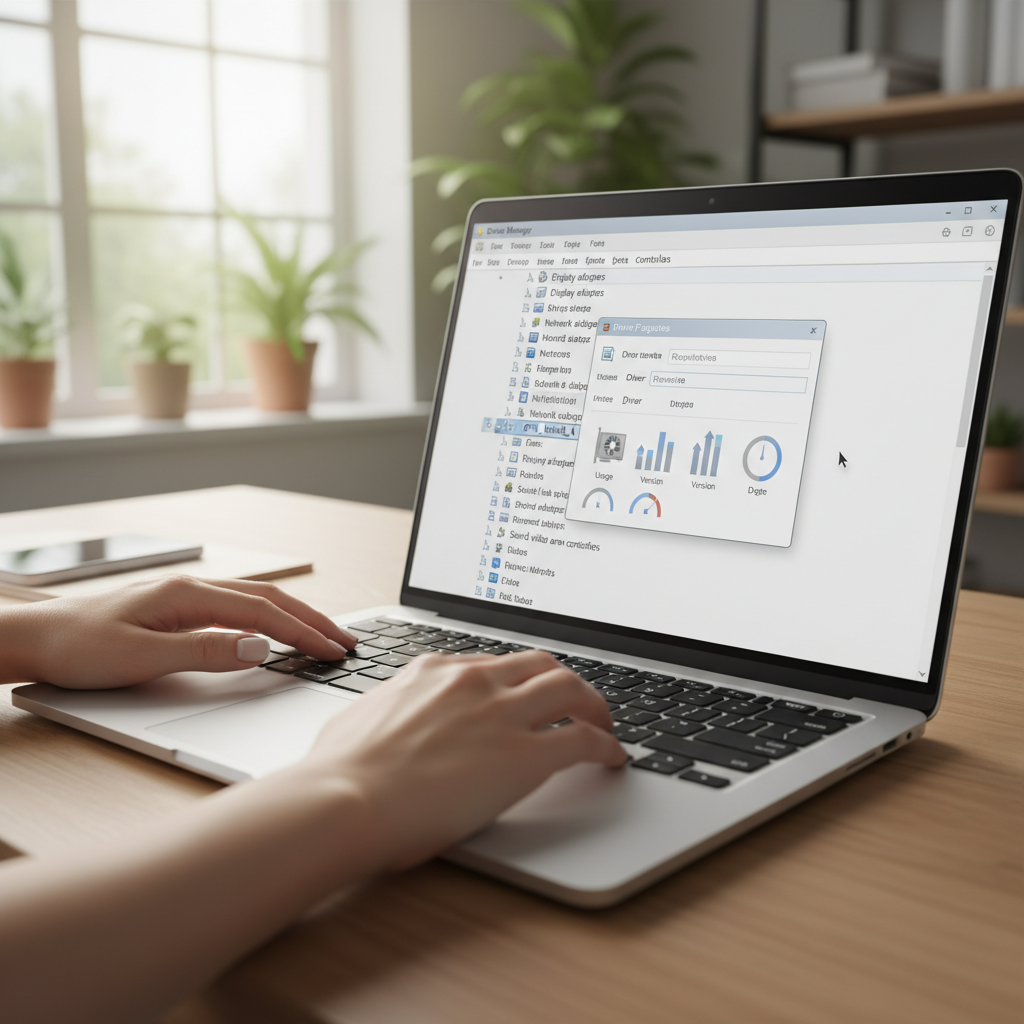
Let’s talk about something that can make or break your computer experience: video drivers. You know those little pieces of software that connect your operating system to your graphics card? They’re more important than you might think. When they’re outdated, your computer can feel sluggish, games might crash, and you’ll wonder why that new software isn’t working right. Here’s the thing—keeping your video drivers current isn’t just about performance (though that’s huge). It’s about making sure your system plays nice with everything you throw at it. We’re going to walk through how to spot when your drivers need attention and show you the safest ways to get them updated.
Recognizing When It’s Time to Upgrade Video Drivers
So how do you know when your video drivers are crying out for an update? Trust me, they’ll let you know—usually in ways that’ll make you want to throw your computer out the window. Outdated drivers have a knack for causing headaches at the worst possible moments. Maybe you’re in the middle of an important presentation and your screen starts flickering. Or perhaps you finally get time to play that new game, only to have it crash every ten minutes. Sound familiar?
Here’s what’s really interesting: being proactive about this stuff can save you hours of frustration later. Think about it—every time a new game launches or your operating system updates, your graphics card needs to know how to handle all those shiny new features. Without current drivers, it’s like trying to speak a language you only half understand. For a deeper dive into this topic, check out how to upgrade graphics drivers safely and effectively, which covers the warning signs and walks you through the installation process.
But wait—there’s more to this story. Sometimes your hardware manufacturer releases drivers that aren’t just fixes, but actual improvements. New features, better performance, enhanced security patches. It’s like getting a free upgrade for hardware you already own. This is especially true if you’re a gamer or work with graphics professionally. Your GPU manufacturer is constantly tweaking things to squeeze out better performance. And here’s something most people don’t realize: while your operating system might handle some driver updates automatically, going straight to the manufacturer’s website often gets you more specialized, cutting-edge improvements. This whole approach actually ties into broader tech trends we’re seeing, as explained in latest software development trends—staying current with updates is becoming more important than ever in our connected world.
Common Symptoms Indicating Outdated Video Drivers
Okay, let’s get specific. What exactly should you be watching for? These warning signs are pretty hard to miss once you know what to look for:
- Frequent Screen Flickering or Glitches: If your screen starts acting like a disco ball—flashing, flickering, or showing weird visual artifacts—that’s usually your drivers waving a white flag.
- Games or Applications Crashing: Nothing kills the mood like a game that crashes right when you’re about to beat that boss. If graphics-heavy programs keep shutting down unexpectedly, outdated drivers are often the culprit.
- Poor Graphical Performance or Lagging: Remember when your computer used to run that program smoothly? If frame rates have dropped or everything feels sluggish, it might be time for a driver refresh.
- Incompatibility with New Software or OS Updates: Just updated your operating system and now nothing works right? Older drivers sometimes can’t keep up with new graphics standards and system changes.
Catching these symptoms early is like noticing a small leak before it becomes a flood. The sooner you address driver issues, the less likely you are to deal with bigger problems down the road. Plus, keeping your drivers current is just good computer hygiene—something every tech-savvy person should have in their toolkit.
Now that you know what to look for, let’s talk about actually checking what drivers you currently have installed. Because before you can fix something, you need to know what you’re working with, right?
Checking and Upgrading Your Video Drivers Safely
Before you start downloading anything, you need to know what you’re currently running. Both Windows and Mac have built-in tools that’ll tell you exactly what’s installed on your system. It’s like checking the label before you buy new clothes—you want to make sure you’re getting the right size and style.
These built-in utilities do more than just show version numbers. They’ll tell you exactly what graphics hardware you have, which is crucial when you’re hunting for the right driver update. And here’s a pro tip that could save you major headaches: always create a backup or restore point before updating drivers. I’ve seen too many people learn this lesson the hard way. For a comprehensive walkthrough of this process, this guide on upgrading graphics drivers has you covered with step-by-step instructions and safety tips. It’s also worth noting how this careful approach to technology updates reflects broader principles discussed in technology integration in classrooms—being methodical and prepared pays off in any tech environment.
If you’re on Windows, Device Manager is your best friend here. It’s straightforward, shows you everything that’s installed, and makes it easy to spot problem drivers. There’s also System Information if you want more detailed specs. Mac users have System Report, which gives you similar insights into your graphics setup and current driver status.
When it comes to actually updating, you’ve got options. Both Windows and Mac can handle some updates automatically through their respective update systems. But here’s where it gets interesting—going directly to your GPU manufacturer’s website (NVIDIA, AMD, Intel) often gets you the latest and greatest drivers before they show up in automatic updates. Just make sure your internet connection is solid and you’ve backed up anything important before you start the update process.
Key Aspects of Driver Checking and Upgrade Process
Let’s break down the smart way to handle driver updates. Follow these practices and you’ll avoid most of the common pitfalls:
- Use Built-in OS Tools for Verification: Device Manager on Windows or System Report on Mac will tell you exactly what you’re working with. No guesswork, no confusion—just clear information about your current setup.
- Download from Official Manufacturer Sites: Stick to the official sources like NVIDIA, AMD, or Intel. Sure, you might find drivers elsewhere, but why risk it when you can get the real deal straight from the source?
- Create System Restore Points or Backups: This is your safety net. If something goes wrong with the new drivers, you can roll back to when everything was working perfectly. It takes two minutes and could save you hours of troubleshooting.
- Follow Platform-Specific Update Methods: Windows users can update through Windows Update or manually via Device Manager. Mac users typically rely on macOS updates, though you should still check for specific GPU updates when they’re available.
Following this structured approach isn’t just about avoiding problems—it’s about taking control of your computing experience. When you understand your driver environment, troubleshooting becomes much easier. You’ll be able to pinpoint issues quickly and fix them before they become major headaches. As technology keeps moving at breakneck speed, having these skills in your back pocket means you can confidently tackle whatever your computer throws at you, whether you’re working, gaming, or creating something amazing.

Here’s the bottom line: keeping your video drivers updated isn’t just some tech maintenance task you can ignore. It’s what keeps your computer running smoothly and your games looking amazing. Think of video drivers as translators—they help your operating system talk to your graphics card, making sure everything from Netflix streams to the latest AAA games runs without a hitch. When these drivers get outdated? That’s when you start seeing weird screen flickering, random crashes, or graphics that look like they’re from 2005. Nobody wants that.
We’ve covered the practical stuff too—how to actually check what drivers you’re running on Windows and Mac. (And yes, it’s easier than you think.) The key is being smart about it: create those restore points, back up your important files, and always download from the official manufacturer websites. I can’t stress this enough—those sketchy third-party driver sites are just asking for trouble. Stick with NVIDIA, AMD, or Intel’s official channels, and you’ll sleep better at night.
Ready to take things up a notch? Now that you’ve got the driver basics down, there’s so much more you can do to supercharge your system. If you want to dive deeper into the update process, check out our detailed guide on how to upgrade graphics drivers safely and effectively—it covers some advanced techniques we didn’t get to here. And here’s a pro tip: pairing driver updates with hardware upgrades can completely transform your computer experience. Our guides on how to upgrade laptop memory and how to upgrade PC RAM will show you how to give your system the memory boost it deserves. Want to stay ahead of the curve? Our coverage of the latest technology trends for 2025 will keep you in the loop. And if you’re serious about gaming, the gaming PC build guide is pure gold for building a rig that can handle anything you throw at it.
Look, updating video drivers isn’t a “set it and forget it” kind of thing. You’ll want to check for updates regularly—maybe once a month, or whenever you notice something acting up. The good news? Once you get into the habit, it becomes second nature. Keep those backups current, stay safe with your downloads, and don’t be afraid to roll back if something goes wrong. You’ve got the knowledge now, so put it to work. Your computer (and your eyes) will thank you for it.
Frequently Asked Questions
-
How often should I update my video drivers?
- Update your video drivers whenever new versions are released or if you notice graphics issues like flickering or crashes. Regular checks help maintain optimal performance.
-
Can I update video drivers without technical knowledge?
- Yes, automated update tools like Windows Update or manufacturer software simplify this process. Following guided steps ensures safe, efficient updates without deep technical skills.
-
What if my computer crashes after updating the drivers?
- If crashes occur, use the rollback feature to revert to the previous stable driver version. Creating a system restore point before updates also helps you recover quickly and safely.
-
Are third-party driver update tools safe?
- Generally, it’s best to use official updates from your hardware manufacturer. Third-party tools may pose security risks or provide incompatible drivers, so prioritize trusted sources.


