Table of Contents
Introduction
You know that feeling when you click on something and then… nothing happens? Your computer just sits there, thinking about it, while you watch that spinning wheel of doom. It’s maddening. A slow computer doesn’t just kill your productivity—it kills your patience too. Whether you’re trying to finish a work project, dive into your favorite game, or just check your email, a sluggish system becomes the ultimate roadblock.
Here’s the thing: figuring out why your computer crawls along like it’s stuck in molasses is actually the key to getting your speed back. Technology keeps moving at breakneck speed, and staying on top of the latest developments can make or break how well your machine performs. This is especially true as technology trends in 2025 bring new software demands and hardware innovations that directly impact your computer’s speed and capabilities.
When your system starts dragging its feet, the culprit could be any number of things. Software bloat, hardware getting long in the tooth, or just too much digital junk piling up. But here’s what’s exciting—once you know what to look for, you can actually do something about it. And if you’re connecting your computer to cloud services or tapping into artificial intelligence innovations, you might be surprised how much that can boost your overall experience.
Now, let’s talk about the sneaky stuff that’s probably slowing you down right now. Cybersecurity threats aren’t just scary headlines—they’re silent speed killers. Malware can turn your zippy machine into a digital snail without you even knowing it. That’s why understanding cybersecurity for small businesses matters whether you’re running a company or just want to keep your home computer safe. Plus, modern software solutions like Software as a Service platforms can actually help keep your system running smoothly while protecting it at the same time—talk about the advantages of SaaS technology.
What You’ll Learn in This Guide
We’re going to walk through everything you need to know to get your computer running like new again. No tech jargon, no complicated procedures—just practical solutions that actually work.
- Common Causes Explained: Understand the primary reasons why computers slow down, including software clutter, malware infections, startup overload, and hardware constraints.
- Effective Cleaning Techniques: Learn step-by-step methods to clean up disk space, remove unnecessary files, and uninstall unused programs safely to free resources and boost speed.
- Security Best Practices: Discover how to identify and eliminate malware and viruses with trusted antivirus tools, and keep your system secure to maintain optimal performance.
- Hardware Upgrade Insights: Explore when and how to upgrade your RAM or switch to a Solid State Drive (SSD) for a powerful performance jump, along with managing startup programs for efficiency.
Technology keeps evolving, which means keeping your computer in fighting shape becomes more important than ever. This guide doesn’t just fix today’s problems—it sets you up to prevent tomorrow’s headaches through smart maintenance and savvy decisions. For example, understanding how technology in supply chain management affects hardware availability can help you time your upgrades perfectly.
We’ll also cover when it’s time to call in the pros. Sometimes DIY isn’t the answer, and knowing when to get expert help can save you both time and money.
Ready to take control of your computer’s speed and health? Let’s turn that digital turtle back into the speed demon it was meant to be. Your future self (and your blood pressure) will thank you.
So we’ve talked about why computers slow down in the first place. Now let’s dig into the real stuff—what’s actually making your computer crawl, and more importantly, what you can do about it. Here’s the thing: once you understand what’s going on behind the scenes, fixing a slow computer becomes way less mysterious and a lot more manageable.
You know that feeling when your computer takes forever to boot up, or when clicking on an app feels like watching paint dry? That frustration isn’t just in your head—and it’s definitely not something you just have to live with. Slow computers don’t just kill your productivity (though they absolutely do that). They can drive you up the wall, make simple tasks feel impossible, and in worst-case scenarios, even put your important files at risk if things crash at the wrong moment.
The good news? Most computer slowdowns aren’t death sentences. Whether you’re dealing with software gremlins, hardware that’s showing its age, or something else entirely, there are real solutions that actually work. We’re going to walk through the most common culprits and give you practical ways to get your computer running like it should again. No tech degree required.
Common Causes of a Slow Computer
Let’s be honest—when your computer starts acting like it’s stuck in molasses, it’s usually not just one thing. Most of the time, it’s a perfect storm of software and hardware issues all conspiring against you. On the software side, you’ve got programs running wild in the background, processes eating up your computer’s brain power, sneaky malware doing who-knows-what, and drivers that are either ancient or corrupted. Think of it like having too many apps open on your phone—everything just starts to bog down.
But sometimes the problem runs deeper. Your hardware might be the bottleneck. Maybe you don’t have enough RAM to handle what you’re trying to do, or your hard drive is on its last legs, or your processor is just getting long in the tooth. It’s like trying to run today’s software on yesterday’s machine—something’s got to give.
Here’s where things get interesting, though. Understanding what’s actually wrong makes all the difference in how you fix it. Take startup programs, for example. You probably have a bunch of apps that automatically launch every time you boot up your computer. Each one uses a little bit of your system’s resources, and before you know it, they’re all fighting for attention. Meanwhile, malware can be silently wreaking havoc in the background—you might not even know it’s there until you run a scan.
And then there’s the hardware angle. Sometimes the best thing you can do for an aging computer is give it more RAM or swap out that old spinning hard drive for a modern SSD. Speaking of which, choosing laptops with SSD drives has become pretty much the standard these days, and for good reason—the speed difference is night and day.
Key Aspects of Common Causes
Want to get to the bottom of what’s slowing you down? Here are the big four areas to investigate:
- Excessive Background and Startup Processes: Your computer is probably running way more stuff than you realize. All those programs that start automatically when you boot up? They’re using RAM and CPU power even when you’re not actively using them. The fix is simpler than you’d think—just go into your system settings and tell the non-essential ones to chill out.
- Malware and Security Threats: This is the scary one. Malware doesn’t just steal your data—it can turn your computer into a sluggish mess by running intensive processes you can’t see. If your computer suddenly got slow for no apparent reason, this might be your culprit. Regular scans with good antivirus software aren’t just recommended—they’re essential.
- Outdated or Corrupted Drivers and Software: Think of drivers as translators between your operating system and your hardware. When they’re outdated or corrupted, things start speaking different languages, and performance suffers. Keeping everything updated isn’t just about new features—it’s about keeping things running smoothly.
- Hardware Limitations and Failures: Sometimes your computer is just asking too much of aging hardware. If you’re still using a traditional spinning hard drive, or if you only have 4GB of RAM, modern software is going to struggle. Upgrading to an SSD or adding more memory can make your computer feel brand new again.
Once you know which category your problem falls into, you can tackle it strategically instead of just trying random fixes and hoping for the best. And here’s a pro tip: it’s usually worth checking software issues before you start shopping for hardware upgrades. You might be surprised what a good cleanup can accomplish.
How to Fix a Slow Computer
Alright, now for the part you’ve been waiting for—actually fixing the problem. The good news is that you don’t need to be a computer whiz to make a real difference. A lot of the most effective fixes are surprisingly straightforward: cleaning up your system, getting rid of malware, managing what starts up with your computer, and maybe upgrading a component or two if needed.
Here’s what I’ve learned from years of dealing with slow computers: most people drastically underestimate how much faster their machine can run just by cleaning house on the software side. Before you start thinking about buying new hardware, try the cleanup approach first. You might save yourself some money and get exactly the performance boost you need.
That said, hardware upgrades can work absolute magic. Adding RAM and switching to an SSD are probably the two most bang-for-your-buck improvements you can make. An SSD will make your computer boot faster, open files quicker, and just feel snappier overall. More RAM means you can actually multitask without everything grinding to a halt. These aren’t just minor improvements—we’re talking about transformative changes that can extend your computer’s useful life by years.
The key is combining both approaches: optimize your software environment AND give your hardware the boost it needs. Oh, and don’t forget about cybersecurity—keeping malware off your system in the first place is way easier than cleaning it up later. For more insights on building efficient digital systems, check out our guide on building efficient digital infrastructure, which covers similar principles for organizing and optimizing digital workflows.
Key Aspects of Effective Fixes
Ready to actually fix your slow computer? Here’s your action plan:
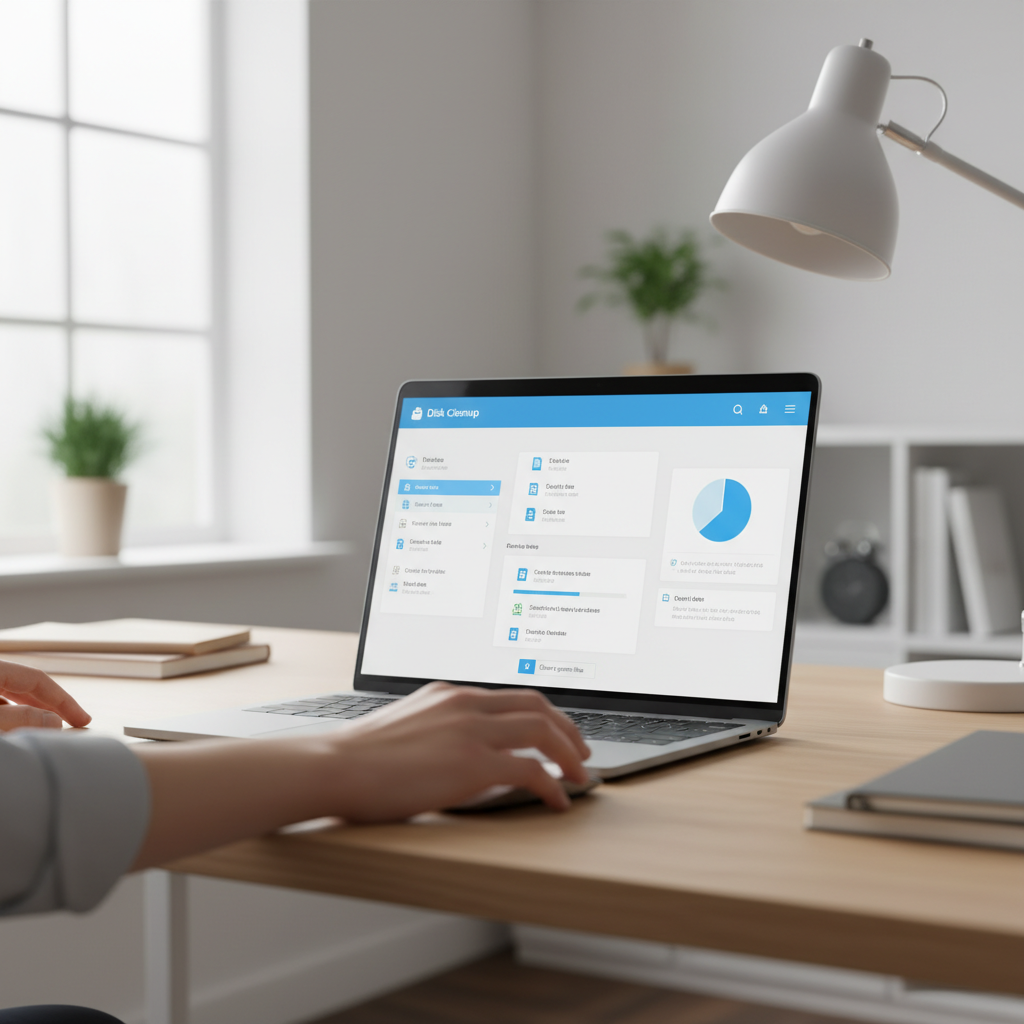
- Cleaning Up Disk Space: Start here. Delete files you don’t need, uninstall programs you never use, and run your computer’s built-in disk cleanup tool. When your hard drive is cluttered, everything slows down because your computer has to work harder to find and access files. It’s like trying to find your keys in a messy room—organization makes everything faster.
- Removing Malware and Viruses: Don’t skip this step. Run a full system scan with reliable antivirus software, and don’t just do it once—make it a regular habit. Malware is sneaky, and by the time you notice it’s there, it might have already done some damage to your system’s performance.
- Managing Startup Programs: This one’s a game-changer. Go into your system settings and see what’s set to start automatically when you boot up. You probably don’t need half of those programs launching every time you turn on your computer. Disable the ones you don’t absolutely need, and watch your boot times improve dramatically.
- Upgrading Hardware: If software fixes aren’t cutting it, it might be time to upgrade. More RAM and an SSD are usually your best bets. These aren’t just incremental improvements—they can make an old computer feel completely new. And honestly? In today’s world, these upgrades are pretty much essential for keeping up with modern software demands.
So here we are—you now know exactly why your computer has been driving you crazy with its sluggish performance. Whether it’s those sneaky junk files piling up like digital clutter or malware quietly hijacking your system’s resources, the culprits are usually hiding in plain sight. You’ve also learned to spot the warning signs: those painfully long boot times, apps that take forever to open, and that frustrating delay when you click something. (We’ve all been there, right?)
But knowing the problem is only half the battle. The real game-changer? Actually doing something about it. Cleaning up your disk space isn’t just digital housekeeping—it’s like giving your computer room to breathe again. Running those malware scans might feel tedious, but trust me, catching those resource-stealing programs is worth every minute. And here’s a quick win: managing your startup programs. You’d be amazed how much faster your computer boots when it’s not trying to launch fifteen programs at once. Sometimes though, software fixes only go so far. That’s when hardware upgrades—more RAM or switching to an SSD—can completely transform your computing experience.
Now, here’s the thing about computer maintenance: it’s not a one-and-done deal. Think of it like taking care of your car. Regular disk cleanups, keeping that antivirus current, and checking what’s launching at startup—these simple habits prevent most performance headaches before they start. And when you’ve tried everything but your computer still acts like it’s running through molasses? That’s when calling in a professional makes sense. No shame in that game.
You’re now equipped with everything you need to keep your computer running smoothly. But technology keeps evolving, and staying ahead of the curve means understanding what’s coming next. If you’re curious about how AI is reshaping our digital world, check out our detailed overview of technology and artificial intelligence. Building something online? Our practical guide on how to build an e-commerce site will help you create efficient digital workflows. Want to know what tech trends are heading our way? Our article on latest technology trends 2025 has you covered. And since we’re talking about protection, understanding cybersecurity for small businesses gives you the bigger picture on keeping threats at bay.
Remember—speeding up your computer isn’t rocket science. It’s about understanding what slows things down, taking action, and staying consistent with maintenance. Do this right, and you’ll have a machine that actually keeps up with you instead of holding you back.
Frequently Asked Questions
-
Why is my computer running slow all of a sudden?
- Sudden slowdowns can be caused by software updates, malware infections, or excessive background processes consuming system resources.
-
How often should I clean up my disk space?
- Cleaning up disk space every few months helps maintain optimal system performance and prevents clutter-related slowdowns.
-
Can adding more RAM really speed up my computer?
- Yes, increasing RAM enhances your computer’s ability to multitask and improves overall performance.
-
Is it safe to disable startup programs?
- Yes, disabling non-essential startup programs is safe and can significantly reduce boot times.
-
When should I consider professional repair?
- If performance issues persist despite troubleshooting or if you suspect hardware failure, seeking professional repair is recommended to avoid further damage.


