Table of Contents
Introduction
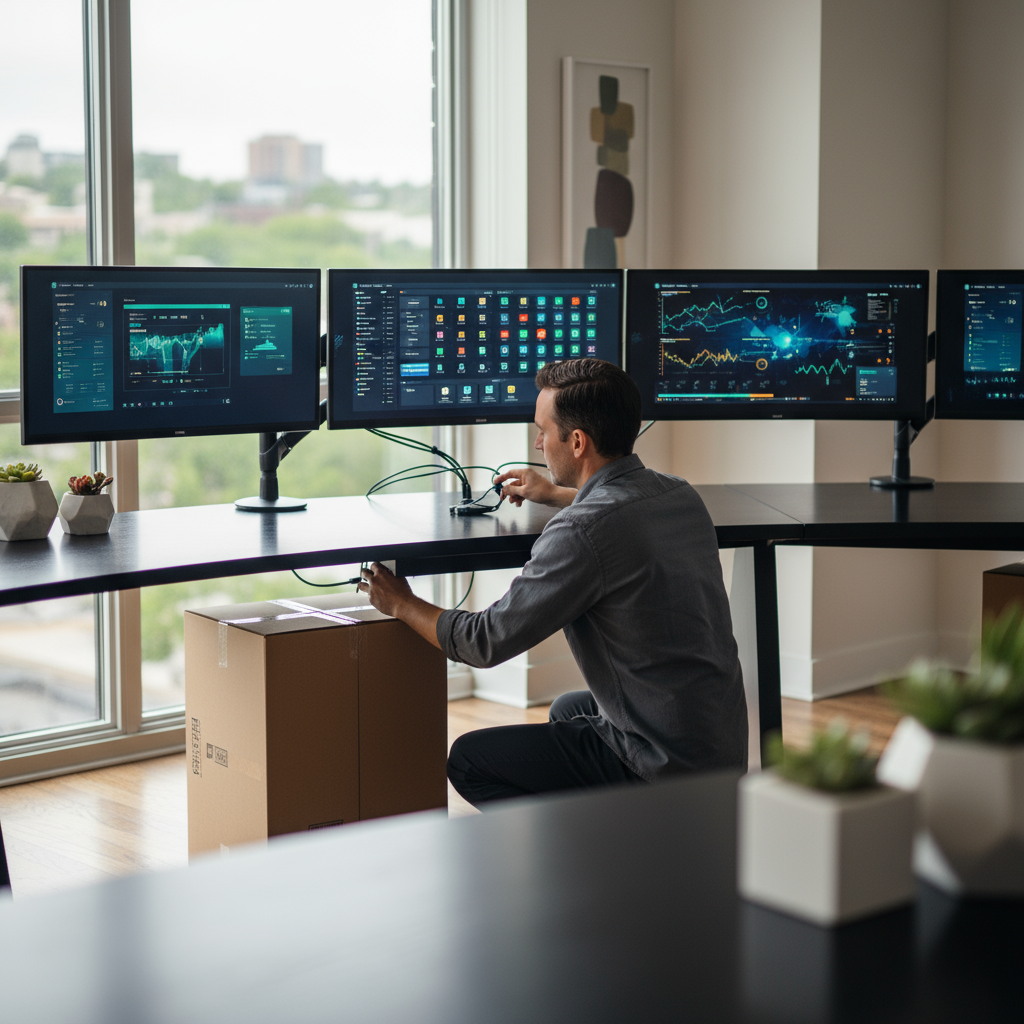
Picture this: you’re juggling spreadsheets, emails, and video calls, constantly clicking between windows like you’re playing some twisted game of digital whack-a-mole. Sound familiar? Here’s where multiple monitors come in to save your sanity. Setting up extra screens isn’t just about looking cool (though that’s a nice bonus)—it’s about creating a workspace that actually works with you, not against you.
Whether you’re working from your kitchen table, building epic gaming setups, or trying to keep track of a dozen different projects, multiple monitors can completely change how you interact with your computer. And the numbers back this up—studies show people can boost their productivity by up to 42% with additional screens. That’s not just marketing fluff. When you can see multiple applications at once instead of constantly switching between them, you get into a flow that single-screen users can only dream about. But here’s the thing: just plugging in an extra monitor won’t magically solve all your problems. You need the right hardware, proper setup, and some insider knowledge to make it all work smoothly. If you’re curious about how technology integration works in different environments, checking out technology integration in modern setups gives you some solid background on creating effective digital workspaces. The basics? You’ll need monitors that play nice together, the right cables and adapters, and—this is crucial—a computer that can actually handle the extra workload.
Now, let’s talk compatibility. This is where a lot of people hit their first roadblock. Your graphics card and available ports are basically the gatekeepers of your multi-monitor dreams. Not every computer can handle multiple displays without breaking a sweat, and figuring out your system’s limits upfront will save you hours of frustration later. (Trust me, I’ve been there.) The tech world moves fast, and staying updated on the latest advances in technology and AI can help you make smarter decisions about what hardware will serve you both now and down the road. But it’s not just about the tech specs—where you put those monitors matters too. Get the ergonomics wrong, and you’ll be dealing with neck pain and eye strain that’ll make you question why you bothered with multiple screens in the first place.
Here’s what nobody tells you about multi-monitor setups: they can be finicky. One day everything’s working perfectly, the next day you’re staring at a “no signal” error wondering what you did wrong. (Spoiler alert: probably nothing.) Knowing how to troubleshoot common issues—from display detection failures to resolution mismatches—isn’t just helpful, it’s essential. You’ll also want to get familiar with software tools that can help you manage your setup more effectively. Because once you experience the freedom of multiple screens, there’s no going back to that cramped single-monitor life.
What You’ll Learn in This Guide
We’re going to walk through everything you need to know about setting up multiple monitors, from start to finish. No jargon-heavy explanations or assumptions that you already know what you’re doing—just practical, step-by-step guidance that actually makes sense.
- Understanding the Basics and Equipment: We’ll break down different monitor types, decode the cable confusion, and help you figure out what your computer can actually handle before you spend any money.
- Step-by-Step Setup Process: I’ll walk you through the entire process—connecting everything physically, arranging your screens for maximum efficiency, and configuring display settings on both Windows and macOS.
- Troubleshooting Common Issues: When things go wrong (and they sometimes will), you’ll know exactly how to fix the most common problems without pulling your hair out.
- Optimizing and Enhancing Your Setup: Beyond just getting things working, we’ll cover how to arrange everything ergonomically, create seamless workflows, and use software tools that make managing multiple monitors a breeze.
By the time we’re done, you’ll not only know how to set up multiple monitors—you’ll understand how to do it right. That means choosing equipment that fits your needs and budget, connecting everything without drama, solving problems when they pop up, and arranging your workspace for both comfort and maximum productivity. This isn’t just about your current setup either. Technology keeps evolving, and understanding these fundamentals will help you adapt as new options become available. Speaking of broader tech trends, exploring technology for smart cities can give you interesting insights into how integrated tech solutions work on a larger scale—principles that often apply to personal setups too.
You might also find it helpful to think about your multi-monitor setup as part of a bigger productivity ecosystem. Learning about software for password management and checking out best laptops for video editing can help you build a more complete understanding of how different tech tools work together. After all, what’s the point of having amazing screen real estate if the rest of your digital workflow is holding you back?
Ready to transform how you work, play, and create? Let’s dive in and build a multi-monitor setup that’ll make you wonder how you ever got anything done with just one screen. Your future self will thank you.
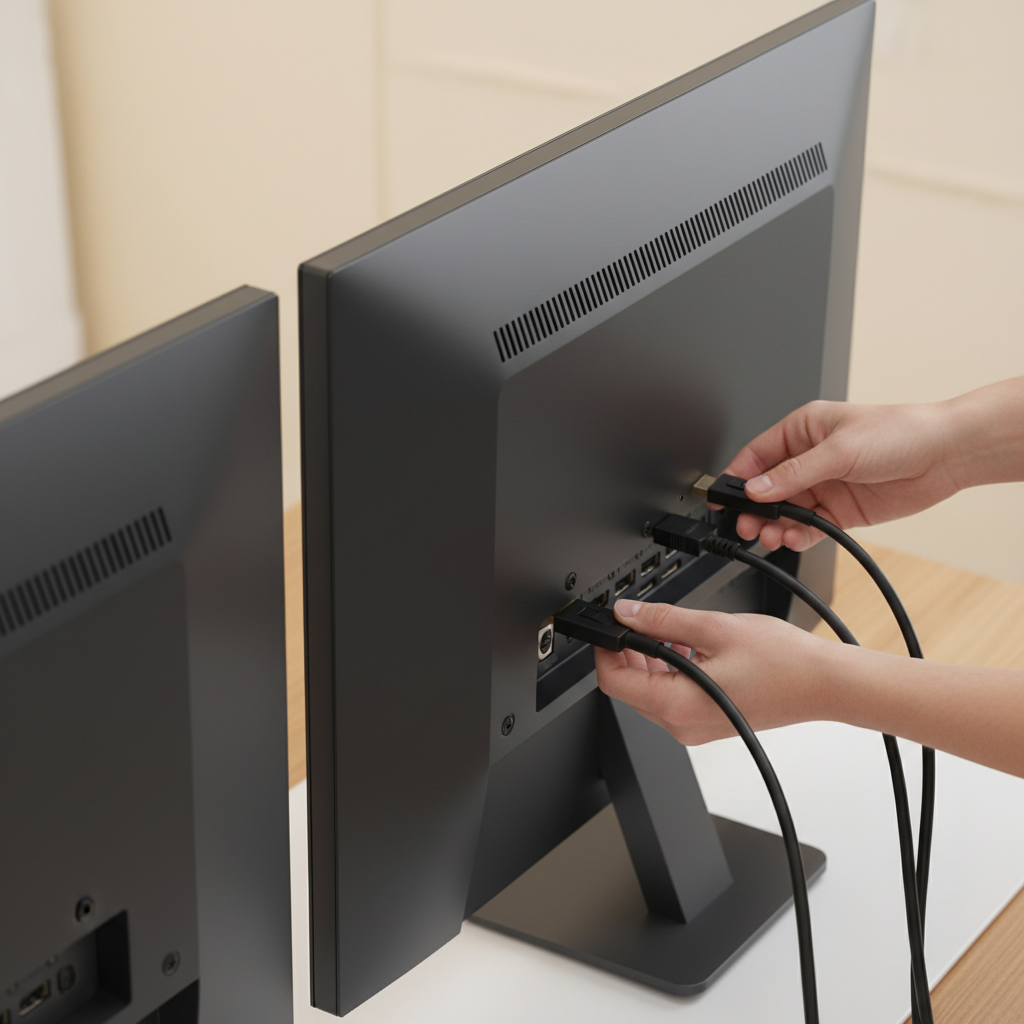
Ever feel like you’re constantly juggling windows on your single monitor? You’re not alone. Multiple monitor setups have become a game-changer for anyone who’s tired of playing peek-a-boo with their applications. Whether you’re a developer drowning in code windows, a trader watching multiple charts, or just someone who likes to keep Netflix open while pretending to work—more screen real estate makes life easier. But here’s the thing: setting up multiple monitors isn’t just about plugging in more screens and hoping for the best. There’s a method to the madness, and we’re going to walk through exactly what you need and how to make it all work together smoothly.
Essential Equipment for Setting Up Multiple Monitors
Let’s start with the basics—what you actually need to make this happen. Creating a multi-monitor setup isn’t rocket science, but it does require the right gear and a bit of homework about your computer’s capabilities. Your choice of monitors? That’s huge. Screen size, resolution, and refresh rates aren’t just fancy specs—they’re what determine whether you’ll love your setup or constantly fight with it. And don’t get me started on cables and adapters (okay, actually, let’s talk about them because they matter more than you’d think). Before you buy anything, take a good look at what ports your computer has. Your GPU is basically the traffic controller for all those displays, so knowing its limits upfront saves headaches later. If you’re curious about what modern devices offer, checking out best laptops for students in 2025 gives you a good sense of current port options and hardware specs.
Now, about those monitor types and cables—this is where things get interesting. HDMI, DisplayPort, USB-C… each one has its own personality. Some handle high resolutions like champions, others are better for basic tasks. Sometimes you’ll need adapters to make everything play nice together. Your graphics card is the real MVP here—it needs enough juice to power all those pixels without breaking a sweat. Pro tip: if you’re also setting up remote work capabilities, the guide on how to set up remote desktop covers compatibility considerations that apply to multi-display setups too.
Key Aspects of Equipment Requirements
Here’s what you need to nail down before you start shopping:
- Monitor Specifications: Try to match your monitors’ resolutions and sizes—trust me on this one. Mixing a 1080p screen with a 4K display sounds cool in theory, but in practice? You’ll spend way too much time dealing with scaling weirdness and text that looks different on each screen.
- Cables and Connectivity: HDMI and DisplayPort are your best friends for crisp, high-resolution displays. VGA? Let’s just say it belongs in a museum at this point. Keep some adapters handy because Murphy’s Law guarantees your monitor and computer will have different ports.
- Graphics Card Capabilities: Your GPU is what makes the magic happen. Make sure it can actually handle the number of monitors you want, at the resolution and refresh rate you’re hoping for. Nothing’s worse than buying everything and then discovering your graphics card taps out.
- Port Availability: Count those video ports on your PC or laptop before you get too excited. Some machines are stingy with ports, which means you might need a docking station or USB adapters to connect everything you want.
Get these fundamentals right, and you’re golden. Once your hardware ducks are in a row, the actual setup becomes pretty straightforward—and dare I say, fun.
Step-by-Step Guide to Connect and Configure Multiple Monitors
Alright, you’ve got your gear. Now comes the moment of truth—actually connecting everything and making it work. First things first: the physical connections. This means plugging in cables (firmly—none of that “maybe it’s connected” nonsense), making sure power cables are solid, and double-checking that everything’s actually turned on. Sounds simple? It is, but you’d be surprised how many “broken” setups are just loose cables. Once everything’s physically connected, the real fun begins with software configuration. Windows and macOS both have pretty intuitive tools for arranging your displays, adjusting scaling, and getting everything positioned just right. Think of it like arranging furniture—you want everything to flow naturally. For broader perspectives on workspace optimization, the insights about technology for customer service show how thoughtful tech setups improve productivity across different fields.
Windows users, you’ll live in the display settings panel for a bit—it’s where the magic happens. Detection, scaling, arrangement—it’s all there. Mac users get similar control through System Preferences under Displays. But here’s where it gets really good: there are some fantastic third-party tools that take multi-monitor management to the next level. We’re talking window snapping that actually makes sense, custom profiles for different work modes, and shortcuts that’ll make you feel like a productivity wizard.
Key Aspects of Setup and Configuration
Here’s your roadmap to multi-monitor success:
- Connecting the Hardware: Plug each monitor into your computer using the right cables—HDMI, DisplayPort, or USB-C work best. Make sure everything’s powered up and connections are snug. Those “no signal” errors usually mean a cable isn’t seated properly.
- Detecting and Arranging Displays: Head to your display settings and arrange the virtual monitors to match your actual desk setup. This lets your mouse cursor move naturally between screens instead of doing that awkward teleporting thing.
- Adjusting Resolution and Scale: Set each monitor to its native resolution for the crispest image possible. If you’re mixing different sized monitors, you’ll want to tweak the scaling so text doesn’t look tiny on one screen and enormous on another.
- Optimizing Productivity with Software: This is where you can really customize your experience. Built-in features are good, but third-party utilities can give you window management superpowers and custom profiles that adapt to different types of work.
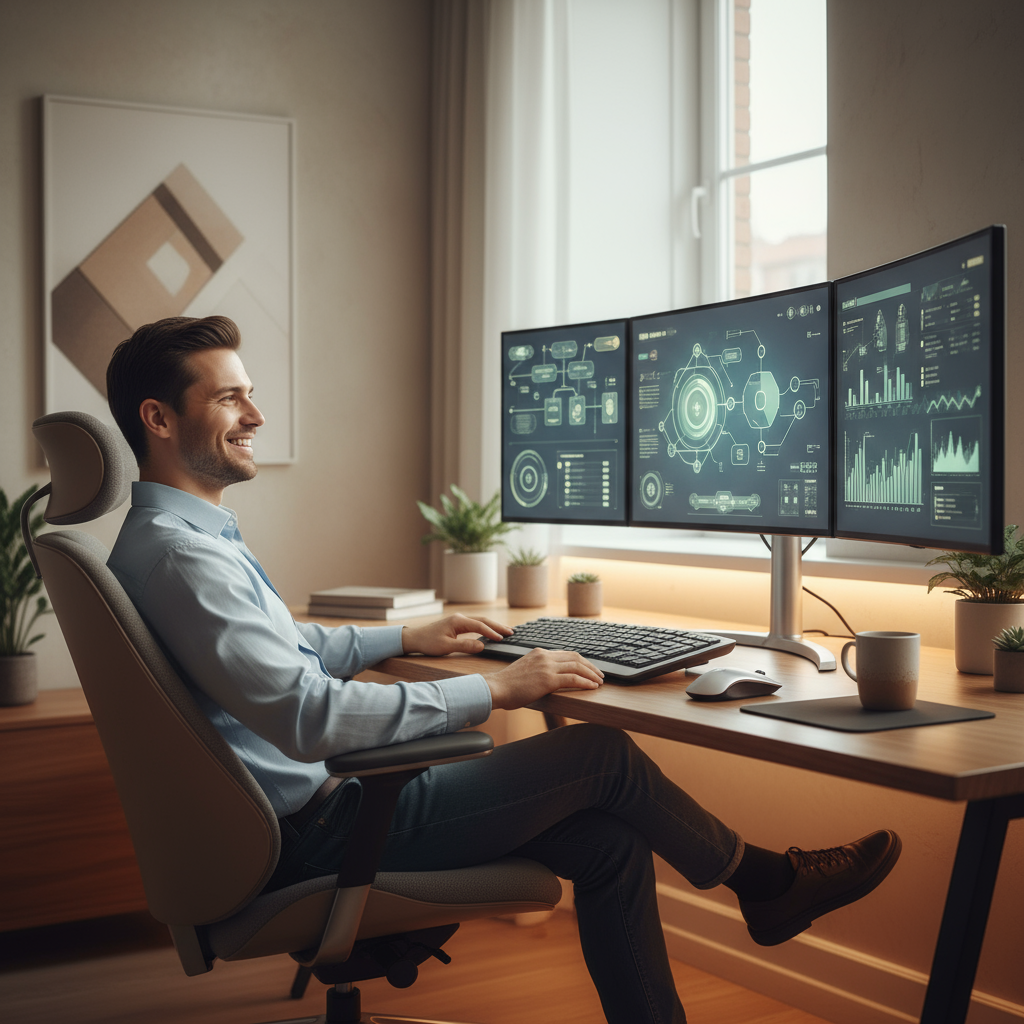
There you have it—you’ve just unlocked one of the best productivity upgrades for your digital workspace. Setting up multiple monitors isn’t just about having more screen space (though that’s pretty awesome). It’s about fundamentally changing how you work, making everything from research to creative projects feel less cramped and more intuitive. We’ve covered everything from picking the right monitors and cables to making sure your computer can actually handle the extra displays. Those monitor specs? They matter more than you might think, especially when it comes to avoiding those annoying scaling issues that can drive you up the wall.
The physical setup and software configuration steps we walked through should have you feeling confident about getting everything connected and running smoothly. And let’s be honest—things don’t always go perfectly the first time. That’s why we tackled those pesky troubleshooting scenarios like “no signal” errors and resolution mismatches. Nobody wants to spend their weekend fighting with display settings when they could be actually getting work done.
But here’s where it gets really interesting. The setup is just the beginning. If you’re working remotely, you’ll want to check out our detailed guide on setting up remote desktop—it pairs perfectly with a multi-monitor setup and lets you access all your work resources from anywhere. For those diving into video editing or other creative work, our breakdown of the best laptops for video editing 2025 will help you choose hardware that can actually keep up with all that extra screen real estate. And if you’re curious about where display technology is heading, our piece on technology for smart cities shows how integrated digital displays are shaping the future—pretty fascinating stuff.
Now, having multiple monitors is great, but getting the most out of them? That’s where the real magic happens. The folks over at Growth Lift Hub have put together some excellent strategies for boosting productivity in the workplace that work incredibly well with multi-monitor setups. It’s all about staying focused and organized when you have all that digital real estate at your disposal.
You’ve got the knowledge, you’ve got the tools, and hopefully, you’ve got your monitors up and running exactly how you want them. Remember, this isn’t a “set it and forget it” kind of thing. Play around with your setup. Try different window arrangements. Experiment with those productivity apps we mentioned. Your workspace should evolve with how you work—and trust me, once you get used to multiple monitors, going back to a single screen feels like trying to work through a keyhole. Your future self will thank you for taking the time to get this right.
Frequently Asked Questions
-
Can I use different brands and sizes of monitors together?
- Yes, but matching resolutions and refresh rates improves consistency and user experience across screens.
-
What is the best cable type for multiple monitors?
- DisplayPort and HDMI are preferred for their high resolution support and compatibility with most modern hardware.
-
How many monitors can my computer support?
- This depends on your GPU and available ports; most modern computers support at least two monitors, but check your specific hardware specifications.
-
Do I need special software to manage multiple monitors?
- Not necessarily, as operating systems have built-in tools, but third-party software can greatly enhance window management and customization.
-
What should I do if one monitor is not detected?
- Check all cable connections, verify power supply, update your graphics drivers, and try reconnecting or restarting your system.


