
Table of Contents
Introduction
Picture this: you’re sipping coffee at home, but you need a file from your office computer. Or maybe you’re traveling and need to fix something on your work machine. Sound familiar? That’s where remote desktop technology comes in—and honestly, it’s one of those tools that once you set it up properly, you’ll wonder how you ever lived without it. Remote desktop lets you control another computer over the internet or your local network, making it feel like you’re sitting right in front of it.
Here’s the thing about remote desktop—it’s not just convenient, it’s becoming essential. With more people working flexibly (and let’s face it, that’s not changing anytime soon), being able to access your computer from anywhere has shifted from “nice to have” to “absolutely necessary.” Whether you’re an IT pro managing company systems or someone who just wants to grab files from home, getting this setup right makes all the difference. The beauty of modern remote access software and cloud services? The possibilities really are endless. You can manage servers, troubleshoot problems, or work seamlessly from anywhere. But here’s what most people don’t realize—there’s a right way and a wrong way to do this. For a solid foundation on your options and security features, checking out software for remote desktop access gives you the knowledge you need to make smart choices.
Now, remote desktop technology isn’t standing still. It’s evolving fast, and keeping up with latest technology trends for 2025 shows you where things are heading. We’re talking about edge computing making connections faster, cloud infrastructure getting more robust, and network protocols becoming more sophisticated. What does this mean for you? Better speed, rock-solid reliability, and stronger security. Understanding these trends helps you choose technologies that work great today and won’t leave you behind tomorrow.
But let’s address the elephant in the room—security. More connectivity means more risk, and that’s just reality. This is especially true for small businesses, where a security breach can be devastating. That’s why strengthening your defenses with proven cybersecurity practices isn’t optional—it’s critical. And here’s a simple but powerful step you can take right now: set up two-factor authentication. It adds an extra security layer that makes a huge difference. Think of it as a digital deadbolt for your remote connections.
What You’ll Learn in This Guide
We’re going to walk through everything you need to know to set up remote desktop access the right way—securely and smoothly. No fluff, just practical steps that actually work. Here’s exactly what we’ll cover:
- Prerequisites and Requirements: What hardware, software, and network setup you actually need (plus the common mistakes that’ll trip you up if you’re not careful).
- Detailed Setup Instructions: Step-by-step directions for Windows and Mac, plus how to connect your devices. We’ll cover different scenarios so you get instructions that fit your situation.
- Troubleshooting Common Issues: When things go wrong (and sometimes they do), you’ll know how to fix connectivity problems and authentication errors quickly.
- Security Best Practices: The essential protections you need—strong passwords, network-level authentication, VPNs—to keep your remote sessions safe from threats.
By the time you finish this guide, you’ll have the confidence to set up and manage remote desktop connections that actually meet your needs, whether that’s for work or personal use. No more crossing your fingers and hoping it works.
What’s coming up? We’ll start with device preparation, then move through permission configuration and client connection setup. You’ll also learn how edge computing can speed up your remote sessions (the benefits of edge computing are pretty impressive), and how cloud services create flexible, scalable access options—especially valuable for businesses exploring cloud computing benefits for businesses. Throughout everything, we’ll balance ease of use with solid security practices.
Whether you’re completely new to remote desktop or you’ve been wrestling with a setup that’s not quite working right, this guide will give you the tools to take control of your digital workspace from anywhere. Ready to get started? Let’s dive into setting up remote desktop access with confidence, so you can unlock the real potential of working remotely.
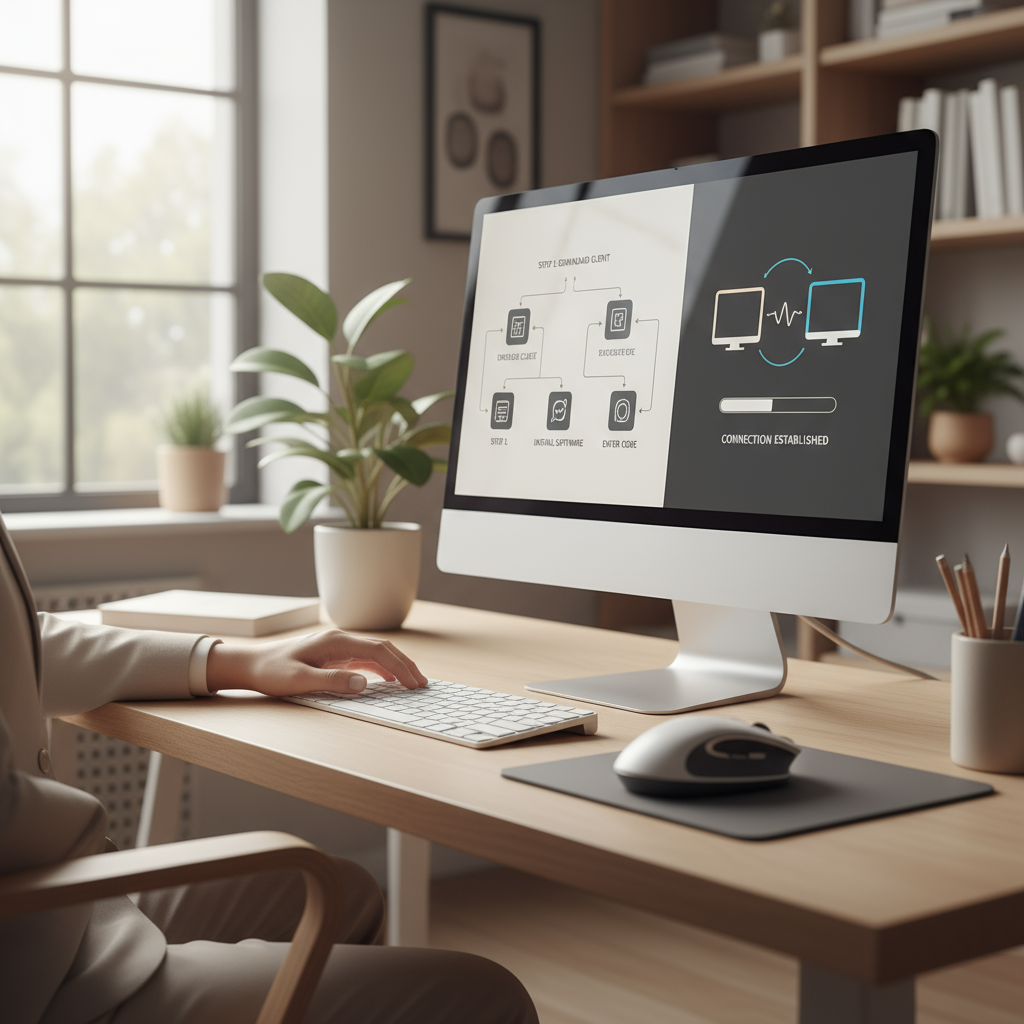
Now that we’ve covered the basics, let’s get into the nuts and bolts of what you’ll actually need before setting up remote desktop. Trust me—taking care of these prerequisites upfront will save you hours of frustration later. There’s nothing worse than getting halfway through setup only to discover your network isn’t configured properly or your device doesn’t support the features you need.
Prerequisites for Setting Up Remote Desktop
Before you flip that remote desktop switch, let’s make sure you’ve got everything lined up. Think of this like checking your gear before a camping trip—you want to know you have what you need before you’re stuck in the woods.
First up: your devices. You’ll need a client device (that’s the one you’ll be connecting from)—could be your laptop, tablet, or even your phone. Then there’s the host computer (the one you’re connecting to). Here’s the thing: not all devices play nice with remote desktop right out of the box. Windows Pro editions? They’re golden. But if you’re running Windows Home or mixing different operating systems, you might need some third-party help.
Your internet connection matters more than you think. I’m talking stable, reliable connectivity on both ends. Nobody wants their remote session dropping out mid-presentation because someone decided to stream Netflix in 4K. And don’t get me started on network settings—they’re probably the biggest headache you’ll encounter. Firewalls, port forwarding, VPN configurations… it sounds complicated, but we’ll break it down.
Here’s a pro tip: if you’re connecting over the internet (not just your local network), you’ll likely need to set up port forwarding or a VPN. Local network connections are simpler, but you still need to make sure your security policies aren’t blocking the connection. Better to check all this stuff now than troubleshoot it later when you’re in a hurry.
Critical Components for a Successful Setup
Let’s run through your checklist—make sure you’ve got all these bases covered:
- Hardware Compatibility: Your client device needs to support remote desktop apps, and your host computer’s operating system needs to allow remote connections. Got an older device? You might need third-party software to bridge the gap, but don’t worry—there are good options out there.
- Software Requirements: Windows RDP works great if you have Pro editions, though you might need to configure antivirus exceptions. Third-party tools like TeamViewer or AnyDesk are lifesavers for mixed environments, but each comes with its own security considerations worth understanding.
- Stable Internet Access: Both computers need solid internet connections. Poor bandwidth equals laggy sessions, random disconnects, and grainy display quality. Not fun when you’re trying to get work done.
- Network Permissions and Firewall Settings: Your firewall needs to allow remote desktop traffic without leaving your system vulnerable. Use recommended security settings and consider Network Level Authentication (NLA) when it’s available—it’s like an extra deadbolt on your digital door.
Get these pieces in place, and you’re setting yourself up for success. The actual setup process becomes much smoother when you’re not fighting basic compatibility issues. Ready to dive into the step-by-step stuff? Let’s do this.
Step-by-Step Setup Instructions
Alright, prerequisites checked off? Great. Now we get to the fun part—actually making this thing work. The exact steps vary depending on what devices and software you’re using, but I’ll walk you through the most common scenarios.
If you’re using Windows Pro, you’re in luck. The built-in Remote Desktop feature is solid and integrates seamlessly with the system. You’ll need to dig into system settings, turn on remote connections, and set up user permissions. Fair warning: you’ll need to know your computer’s name or IP address—that’s how other devices will find it on the network.
For your client devices, you might need to download a Remote Desktop app if it’s not already installed. The good news? These apps exist for pretty much everything—Windows, Mac, iPhone, Android, you name it. When you’re ready to connect, you’ll enter your target computer’s credentials. This is where having strong passwords really pays off.
Third-party solutions open up a whole world of possibilities. TeamViewer and AnyDesk are popular because they’re user-friendly and work across different platforms. Plus, they often include bonus features like file transfer and session recording that the built-in options don’t have.
Steps to Enable and Connect Effectively
Here’s your action plan for getting connected:
- Enable Remote Desktop on Windows: Head to System Settings, find the Remote Desktop section, and flip that switch. Set up user permissions carefully—only give access to accounts that actually need it. Write down your device’s network name or IP address; you’ll need it for connecting.
- Install Remote Desktop Client on Client Devices: Download the right Remote Desktop app for your device. Microsoft’s official app works well, but don’t be afraid to explore secure third-party alternatives if they better fit your needs.
- Initiate Connection Using Credentials: Open your client app, punch in the target computer’s name or IP address, and enter your login credentials. Cross your fingers for a smooth connection, but be ready to troubleshoot if things don’t work on the first try.
- Explore Third-Party Solutions for Flexibility: Check out reliable third-party options like software for remote desktop access if you need extra features like cross-platform support, session recording, or more granular security controls.
Follow these steps, and you’ll have a remote desktop setup that actually works when you need it. The key is getting the foundation right—nail these basics, and you’ll spend less time troubleshooting and more time being productive. Your future self will thank you.

Here’s the thing about remote desktop technology—it’s practically become the backbone of how we work today. Whether you’re working from your kitchen table or managing servers from a coffee shop halfway around the world, being able to access another computer remotely changes everything. Need to grab that important file you forgot on your office computer? No problem. IT team needs to fix something on a server at 2 AM? They’ve got it covered without leaving home.
Getting your remote desktop setup right isn’t rocket science, but it does require some prep work. Think of it like setting up a new TV—you need the right cables, a good signal, and everything configured properly. Your hardware and software need to play nice together, and that internet connection better be solid (nobody wants their remote session dropping out mid-presentation). The network side can get a bit tricky with firewalls and port forwarding, but once you work through it step by step—whether you’re using Windows’ built-in Remote Desktop, a handy client app, or tools like TeamViewer—you’ll wonder how you ever lived without it.
Even when you’ve done everything right, things can still go sideways. Connection failures happen. Authentication gets cranky. That’s just technology being technology. But here’s what really matters: keeping your remote sessions locked down tight. We’re talking strong passwords (and I mean really strong), Network Level Authentication turned on, and VPNs when you need that extra security layer. When you hit a wall with complex network issues, don’t be a hero—get the tech support folks involved before you accidentally lock yourself out.
Ready to take your remote desktop game to the next level? Start with our comprehensive guide on software for remote desktop access—it’ll help you pick the right tools for what you’re trying to accomplish. Technology moves fast, so check out our piece on the latest technology trends for 2025 to see what’s coming down the pipeline for remote connections. Want to understand why your remote desktop might get faster and more reliable? Our article on the benefits of edge computing breaks it down nicely. And if you’re running a business (especially a smaller one), the cybersecurity for small businesses guide is absolutely worth your time—the security principles apply to everything, including your remote work setup.
You’ve got the knowledge now. You’ve got the resources. Time to put it all to work. Set up your remote desktop connections with confidence, keep security front and center, and stay curious about new developments in the field. When you run into something that stumps you (and you will), don’t hesitate to call in the experts. Master these remote connections, and you’ll not only boost your productivity—you’ll sleep better knowing your digital workspace is both accessible and secure.
Frequently Asked Questions
-
What is remote desktop?
- Remote desktop is a technology that allows you to access and control a computer from another device over a network or the internet.
-
Is remote desktop secure?
- When configured with strong passwords, Network Level Authentication, and secure connections, remote desktop can provide a high level of security.
-
Can I use remote desktop on any device?
- Most devices including Windows PCs, Macs, smartphones, and tablets support remote desktop clients or apps.
-
What if I cannot connect to the remote computer?
- Check your network settings, firewall permissions, and verify the remote device is powered on and accessible.
-
Do I need to install software to use remote desktop?
- Some operating systems have built-in clients, but you may need to download apps or third-party software depending on your setup.


