Table of Contents
Introduction
Ever notice how your computer picks the worst possible moments to slow down? You’re rushing to finish a project, trying to juggle three different programs, and suddenly everything crawls to a halt. Your computer starts acting like it’s thinking really, really hard about every click. Sound familiar?
Here’s the thing about RAM (Random Access Memory)—it’s basically your computer’s short-term memory. Think of it like your desk space. The bigger your desk, the more papers you can spread out and work on at once. When your desk gets cluttered? Everything slows down. Your computer works the same way, and when you boost your RAM, you’re essentially giving it a bigger workspace to handle all your digital tasks.
Now, if you’re working in education or dealing with professional demands, having enough RAM isn’t just nice—it’s essential. Today’s classrooms aren’t just about textbooks anymore. We’re talking interactive learning apps, video streaming, virtual labs, and students multitasking like pros. (Trust me, they can handle way more browser tabs than most adults.) Without enough memory, these amazing educational tools become frustrating roadblocks. Speaking of educational technology, if you want to see how deep this rabbit hole goes, check out this piece on technology integration in classrooms—it really shows why hardware upgrades matter more than ever.
And here’s where things get really interesting. AI is everywhere now, right? Those smart features in your apps, the voice assistants, the photo recognition—they all need serious computing power. AI applications are memory-hungry beasts that love to crunch through massive amounts of data in real-time. If your computer is struggling with basic tasks now, imagine trying to run tomorrow’s AI-powered software on today’s limited RAM. Want to understand how AI is reshaping our tech landscape? This guide on technology and artificial intelligence breaks it down beautifully.
What You’ll Learn in This Guide
Ready to give your computer the upgrade it deserves? We’re going to walk through everything together, step by step. No tech jargon overload, no assuming you know stuff you don’t—just clear, practical guidance that actually makes sense.
- Understanding RAM Basics: We’ll decode what RAM actually does, why it makes such a huge difference in how your computer feels to use, and how more memory translates to better multitasking and faster performance.
- Assessing Your Current Setup: You’ll learn how to detective your way through your current RAM situation—what you have, what type it is, and most importantly, what will actually work as an upgrade without compatibility headaches.
- Step-by-Step Upgrade Process: This is where we get our hands dirty (figuratively). We’ll cover opening up your computer safely, swapping out memory modules, and making sure everything clicks into place perfectly—literally and figuratively.
- Troubleshooting Tips: Because let’s be honest, sometimes computers are moody. We’ll tackle the most common hiccups that pop up after upgrades and how to fix them without pulling your hair out.
So what’s coming up? First, we’re diving into RAM fundamentals—why your computer needs it, how it works, and why upgrading might be exactly what your sluggish machine needs. Then we’ll play detective with your current setup, figuring out what you’re working with and what upgrades make sense for your specific situation.
After that comes the fun part: the actual installation. Don’t worry—we’ve got safety tips, tool recommendations, and detailed instructions that work whether you’re dealing with a desktop tower or a laptop. And because technology loves to keep us on our toes, we’ll cover the troubleshooting basics too. If you’re specifically working with a laptop, you might want to bookmark our guide on how to upgrade laptop RAM for even more targeted advice.
By the time we’re done here, you’ll have the confidence to tackle this upgrade yourself and the knowledge to make smart choices about your computer’s performance. Whether you’re gaming, working, studying, or just tired of waiting for things to load, more RAM can make a real difference in how your computer feels to use every day. Ready to get started? Let’s turn that sluggish machine into something snappy.
Your computer feeling sluggish lately? Before you start shopping for a whole new system, let’s talk about one of the smartest upgrades you can make: adding more RAM. Think of it this way—if your computer’s brain is the CPU, then RAM is like your desk space. The bigger your desk, the more projects you can spread out and work on at once without everything getting cramped and messy.
Here’s the thing: as software gets more demanding and we all become multitasking masters (who doesn’t have 15 browser tabs open right now?), your computer needs more breathing room to keep up. Whether you’re into gaming, editing videos, or just tired of waiting forever for programs to load, upgrading your RAM can breathe new life into your machine. And the best part? It’s often way easier than you think.
We’re going to walk through everything you need to know—from figuring out what your computer can handle to actually getting those new memory sticks installed safely. No tech degree required, just a little patience and the right guidance.
Understanding RAM and Key Considerations for Upgrading
So what exactly is RAM anyway? Random Access Memory is basically your computer’s short-term memory—it’s where your system temporarily stores all the stuff your processor needs to grab quickly. More RAM means smoother multitasking, faster app launches, and way less of that spinning wheel of doom we all know and hate.
But hold on—before you rush out and buy the first RAM kit you see, there are some important things to check first. Your motherboard is pretty picky about what memory it’ll accept. We’re talking RAM types (DDR3, DDR4, DDR5), maximum capacity limits, speed compatibility, and how many slots you actually have available. Get any of these wrong, and you’ll end up with expensive paperweights instead of a performance boost.
This is where doing your homework pays off. You need to know exactly what your system can handle before making any purchases. For laptop users especially, checking compatibility is crucial—and this laptop RAM upgrade compatibility guide covers all the technical details you’ll need to avoid costly mistakes.
Now, let’s talk about what you’re actually getting for your money. Better multitasking means you can run Photoshop, Chrome with 20 tabs, and Spotify all at once without your computer having a meltdown. Faster loading times? Your programs will actually open when you click them (revolutionary, right?). And if you’re into gaming or video editing, that extra memory can make the difference between smooth performance and frustrating lag.
The beautiful thing is that a RAM upgrade can seriously extend your computer’s useful life. Instead of dropping big money on a completely new system, you might just need to give your current one more memory to work with. Just remember to stick with reputable brands and try to match speeds when adding to existing memory—your computer will thank you for it.
Key Aspects of RAM Upgrading
Before you dive in, here are the crucial things you absolutely need to nail down:
- Motherboard Specifications: Your motherboard is the boss here—it decides what type of RAM you can use, how fast it can run, and how much you can install total. Check your motherboard manual or hit up the manufacturer’s website to find these specs. Trust me, this step will save you from a very frustrating return trip to the store.
- RAM Type and Generation: DDR3, DDR4, DDR5—these aren’t just random letters and numbers. Each generation has different speeds, power requirements, and won’t fit in the wrong slot (thankfully). Make sure you know which generation your system supports before you buy anything.
- Maximum Supported Memory: Every system has a ceiling, and going over it won’t give you super-computer powers—it’ll just cause headaches. Some systems won’t recognize the extra memory, others might become unstable. Know your limits and stay within them.
- Available RAM Slots: Count your slots before you shop. Do you have empty ones to fill, or will you need to swap out existing memory? This affects both your strategy and your budget, especially since laptops typically have fewer slots than desktops.
Getting these basics right isn’t just good practice—it’s the difference between a successful upgrade and a frustrating afternoon of troubleshooting. Once you’ve got this foundation solid, the actual installation becomes much more straightforward.
Alright, now that we’ve covered the planning phase, let’s get to the fun part: actually installing your new RAM and turning your computer into the multitasking machine it was meant to be.
Step-by-Step Process to Upgrade Your Computer RAM Safely and Effectively
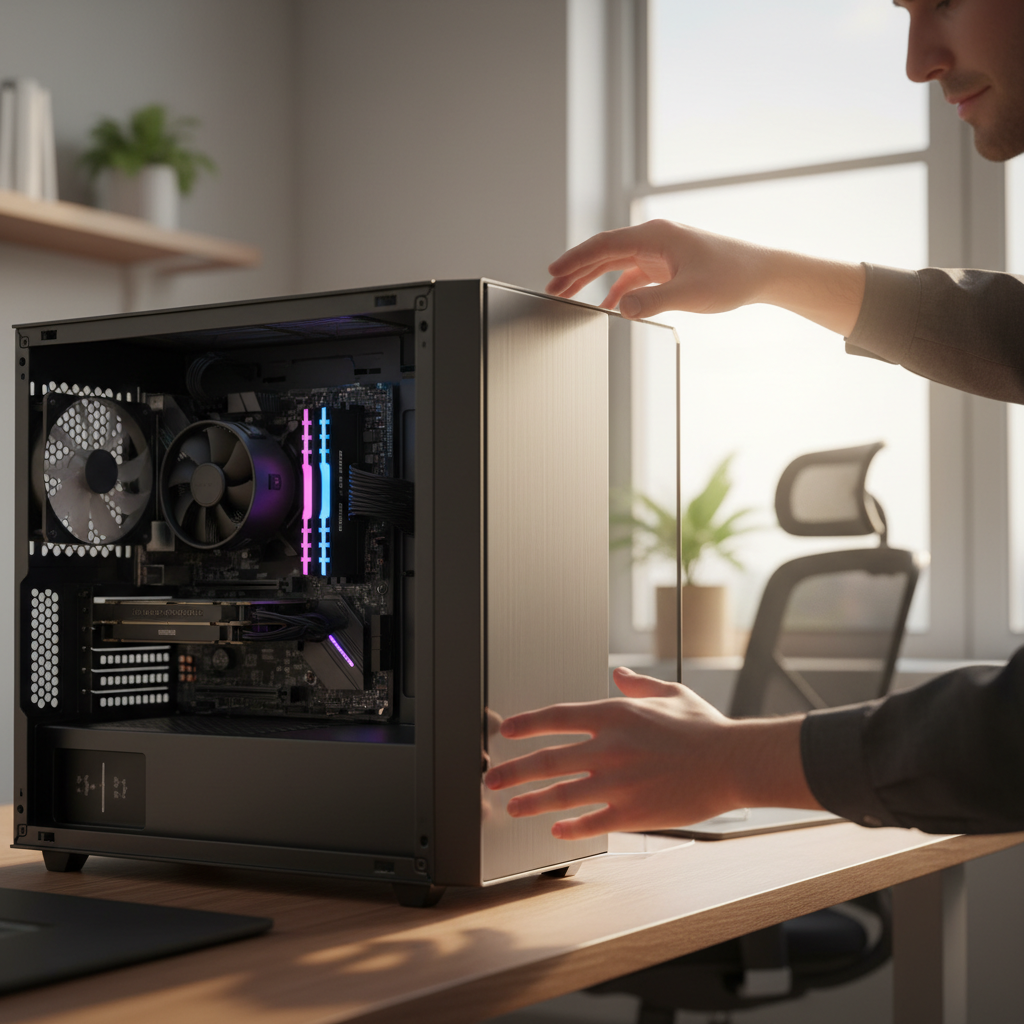
Ready to get your hands dirty? The actual RAM installation is surprisingly straightforward, but there are some important safety steps you can’t skip. Think of this like surgery—you want everything clean, organized, and static-free before you start poking around inside your computer.
First things first: gather your tools (usually just a screwdriver or two) and make sure you’ve got the right RAM modules based on your earlier research. The biggest enemy here isn’t complexity—it’s static electricity. That little zap you barely notice can fry delicate computer components instantly. So before you touch anything inside your computer, ground yourself by touching something metal or using an anti-static wrist strap if you have one.
Power everything down completely and unplug all cables. This isn’t just about safety (though that’s important)—it’s about protecting your investment. Once you’re ready to access those RAM slots, take your time. Rushing is how you end up with broken clips or bent pins. If you need help with the preparation steps or want more details on computer maintenance in general, this computer maintenance article has some great complementary tips.
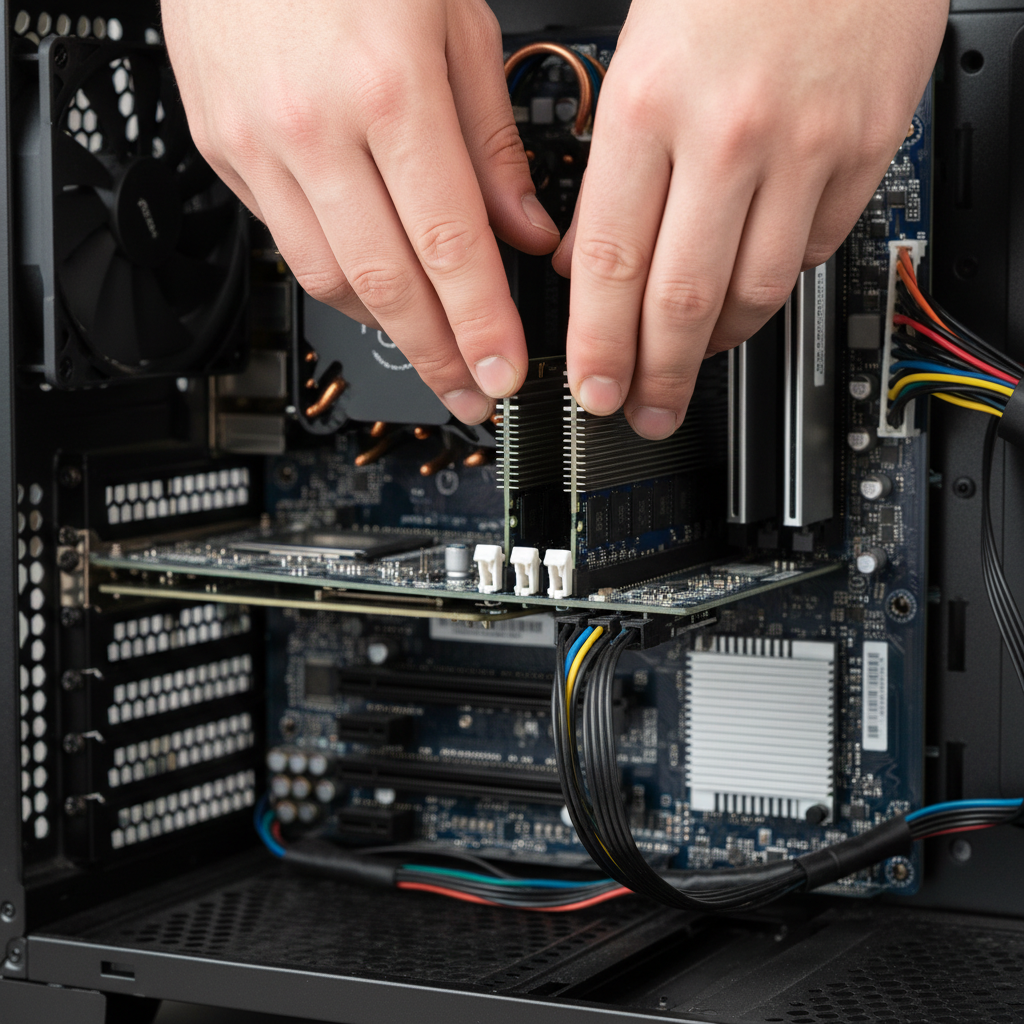
The installation itself is pretty satisfying once you get the hang of it. RAM sticks only fit one way (thank goodness for that little notch), and when they’re properly seated, you’ll hear a definite click as the retention clips snap into place. If you’re replacing existing memory, those clips release pretty easily—just don’t force anything.
After you’ve got everything installed and your computer is buttoned back up, the moment of truth arrives: powering on and seeing if your system recognizes the new memory. Most computers will show the total RAM during startup, or you can check through your system information. Want to really see the difference? Try opening all those programs that used to make your computer crawl—you might be surprised at how smooth everything feels now.
Pro tip: if you’re already upgrading your RAM, this might be a perfect time to consider other productivity improvements too. That extra memory pairs beautifully with a multi-monitor setup—check out this guide on setting up multiple monitors to really maximize your new-and-improved workstation.
Key Steps in RAM Upgrade
Here’s your step-by-step roadmap to RAM upgrade success:
- Preparation and Safety: Power down completely and unplug everything—no shortcuts here. Ground yourself to discharge any static electricity (touch something metal or use an anti-static strap). This step takes 30 seconds but can save you hundreds of dollars in fried components.
- Locating and Accessing RAM Slots: Pop open your desktop case or remove your laptop’s back panel to get to the memory slots. Every design is a little different, so don’t feel bad if you need to consult your manual—better safe than sorry when you’re working with delicate parts.
- Installing RAM Modules: Line up that notch and press down firmly but gently until you hear the clips click into place. The key word here is “firmly”—it takes more pressure than you might expect, but don’t force it. If it’s not going in easily, double-check your alignment.
- System Verification and Performance Testing: Close everything up, power on, and verify your system sees the new memory through your system information panel. Then comes the fun part—fire up your usual programs and enjoy the difference. Your computer should feel noticeably more responsive, especially when multitasking.
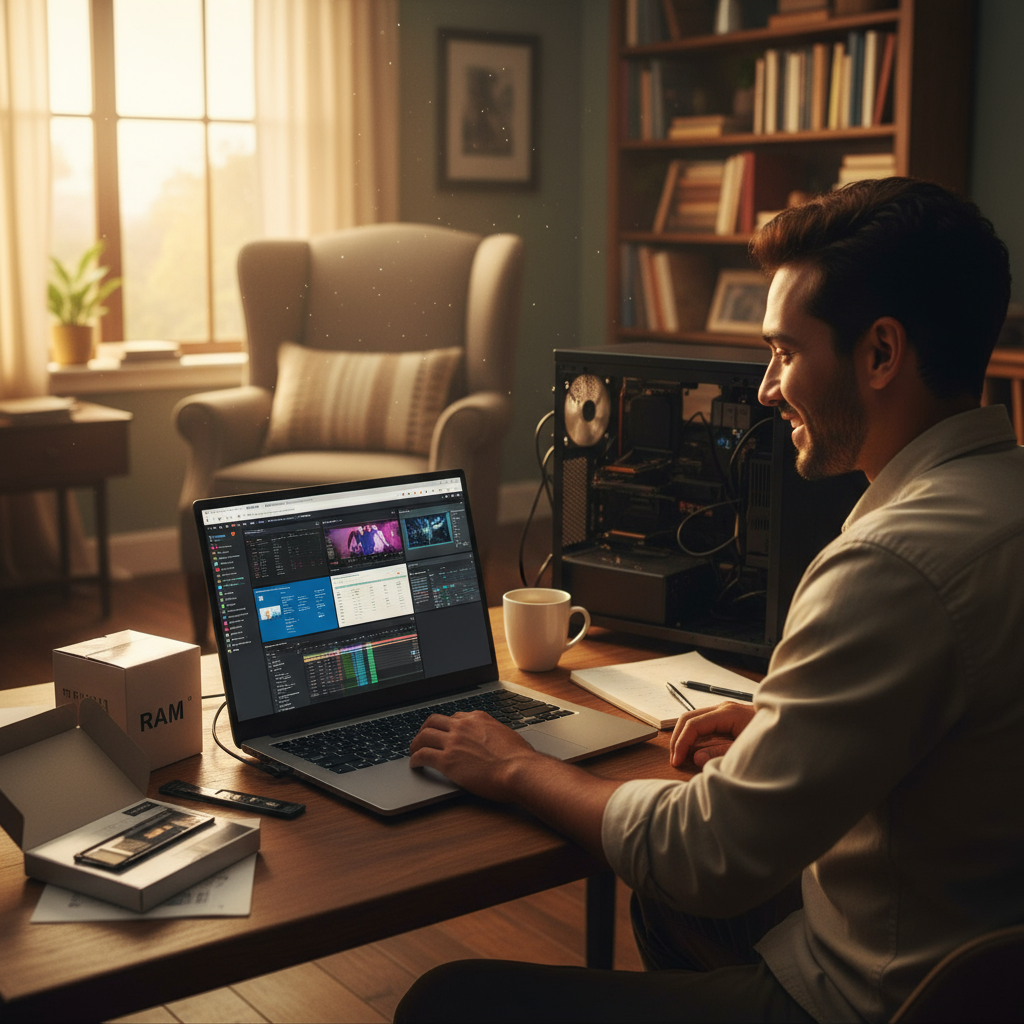
Here’s the thing about RAM upgrades—they’re honestly one of the smartest moves you can make for your computer. Think of RAM as your system’s workspace. The bigger the workspace, the more projects you can spread out without everything getting cramped and sluggish. When you bump up your RAM, you’re basically giving your computer room to breathe. Multitasking becomes smooth, programs launch faster, and those memory-hungry tasks like gaming or video editing? They’ll actually feel enjoyable instead of frustrating.
Now, before you dive in and start shopping, you’ve got to do a little homework first. (Trust me, this saves headaches later.) Check what type of RAM your motherboard actually supports—DDR3, DDR4, or DDR5. Find out the maximum capacity it can handle and count those available slots. I know it sounds tedious, but spending ten minutes on this research beats the alternative: ordering the wrong RAM and having to return it while your computer sits there, still running like molasses.
The actual installation? It’s surprisingly straightforward. Power everything down, ground yourself (a simple touch to a metal case works), and gently slide those RAM sticks into place until they click. Listen for that satisfying click—it means you did it right. Boot up, check that your system recognizes the new memory, and run a quick test. Most of the time, everything just works. When it doesn’t? A little basic troubleshooting usually sorts things out without needing to call in the pros.
This upgrade can genuinely transform how you use your computer. Instead of watching that spinning wheel of doom, you’ll actually enjoy switching between apps. Your computer will feel responsive again, like it’s keeping up with your thoughts instead of lagging behind them. Whether you’re just trying to browse the web without everything crawling to a halt, or you’re pushing creative software to its limits, more RAM makes a real difference you’ll notice every day.
Want to get started? Our detailed guide on how to upgrade laptop RAM walks you through the specifics for portable devices. If you’re thinking bigger picture, learning how to set up multiple monitors can seriously boost your productivity. Curious about what’s coming next in tech? Check out the latest technology trends for 2025 to see how new innovations might influence your tech decisions. And if your computer’s still acting up after the RAM upgrade, our guide on how to fix a slow computer offers plenty of other solutions. While you’re optimizing your digital life, don’t forget about your physical health—discover the fitness benefits of cycling for a balanced lifestyle, and learn how to build an emergency fund to keep your finances as optimized as your computer.
Your upgraded computer is going to feel like a completely different machine. Faster, more responsive, ready to handle whatever you throw at it. The best part? You made it happen yourself. Every time your system runs smoothly, you’ll know you invested wisely in both the hardware and your own knowledge. Keep exploring new ways to optimize and maintain your setup—it’s incredibly satisfying to understand how your technology works. And if you’re interested in diving deeper into emerging tech, our guide on technology and artificial intelligence offers some fascinating insights into how AI is reshaping our digital world. Remember, every smart upgrade you make is building toward a better, more efficient digital experience that serves you for years to come.
Frequently Asked Questions
-
How do I know if my computer needs more RAM?
- Signs like slow performance, frequent freezing, and difficulty running multiple programs indicate you may need more RAM.
-
Can I upgrade RAM on any computer?
- Most desktops and many laptops support RAM upgrades, but some ultrabooks or tablets may have non-upgradeable memory.
-
What type of RAM is best for my computer?
- Check your motherboard specifications to find out which RAM type—DDR3, DDR4, or DDR5—is compatible.
-
Is it safe to install RAM myself?
- Yes, with proper grounding and following a careful installation process, upgrading RAM is safe for most users.
-
Will upgrading RAM improve gaming performance?
- More RAM can improve gaming performance up to a point by allowing smoother multitasking and faster load times.


