
Table of Contents
Introduction
Picture this: you’re in the middle of an important project, juggling three different applications, when suddenly your laptop decides to take a coffee break. The spinning wheel of doom appears. Everything slows to a crawl. Sound familiar? If your laptop feels like it’s running through molasses lately, there’s a good chance the culprit is insufficient memory. But here’s the good news—you don’t need to shell out hundreds for a new machine. A simple RAM upgrade can transform your sluggish laptop into a productivity powerhouse.
Let’s be real about something: upgrading laptop memory is probably the best bang for your buck when it comes to computer improvements. Think about it—modern apps are memory hogs. Your operating system wants more RAM. That photo editing software? Definitely needs more. Even having too many browser tabs open (we’ve all been there) can bring an older laptop to its knees. Instead of living with the frustration or draining your bank account on a replacement, a memory upgrade can give your laptop a serious performance boost. And if you’re curious about the nuts and bolts of the process, checking out how to upgrade laptop RAM step-by-step will give you the confidence to tackle this project head-on.
Now, I know what you’re thinking. “Is my laptop even upgradeable?” or “What if I mess something up?” These are totally valid concerns, but here’s the thing—checking compatibility is way easier than most people imagine. You just need to know where to look and what questions to ask. Finding out your laptop’s maximum RAM capacity and how many memory slots are available can save you headaches (and money) later. Want to explore this further? Looking into how to upgrade PC RAM can broaden your understanding of memory upgrades across different types of computers.
There’s one more piece of the puzzle worth mentioning. While we’re focusing on RAM upgrades here, don’t forget about keeping your laptop drivers current. Outdated drivers can actually bottleneck the performance gains you get from new memory—kind of like having a sports car but only putting regular gas in it. That’s why understanding how to update laptop drivers is so valuable. When you combine a memory upgrade with up-to-date drivers, you’re setting your laptop up for optimal performance.
What You’ll Learn in This Guide
Ready to dive in? We’re going to walk through everything you need to know about upgrading your laptop’s memory safely and effectively. Here’s what’s coming up:
- Understanding the Basics: We’ll break down what laptop memory actually does, explore different types of RAM, and explain why this upgrade can completely change how your computer performs.
- Checking Compatibility: Learn the detective work needed to verify your laptop’s specs, identify the right memory modules, and determine your maximum upgrade capacity without any guesswork.
- Step-by-Step Installation: Follow our detailed walkthrough for setting up your workspace, safely opening your laptop, installing new RAM modules properly, and putting everything back together.
- Troubleshooting Common Issues: Discover how to spot and fix the most common hiccups that can happen after a memory upgrade, so your laptop runs like a dream.
Before we get our hands dirty, it’s worth taking a look at how to upgrade computer RAM for some additional context and practical tips that apply to various types of hardware. By the time we’re done, you’ll have both the knowledge and confidence to give your laptop a new lease on life.
We’ll also tackle some important decisions you’ll need to make—like how much RAM is actually right for your specific needs. Are you mainly doing office work and web browsing? Creative projects with demanding software? Gaming? The answer affects how much memory you should install. Plus, we’ll cover the safety basics to protect your components from static electricity during installation. (Trust me, a little preparation goes a long way.)
Look, upgrading laptop memory might seem intimidating if you’ve never cracked open a computer before. But here’s what I’ve learned: with the right guidance and a bit of patience, it’s actually pretty straightforward. More than that, it’s genuinely satisfying. There’s something empowering about understanding how your laptop works under the hood and being able to improve it yourself. Whether you’re completely new to hardware upgrades or you’ve tinkered with computers before, this guide will give you clear, practical advice that actually works in the real world.
Introduction
Want to breathe new life into your sluggish laptop? Upgrading your memory might just be the game-changer you’re looking for. It’s honestly one of the smartest moves you can make—and way more affordable than buying a whole new machine. Think about it: as software gets hungrier for resources and you find yourself juggling more apps than ever, having enough RAM becomes the difference between smooth sailing and constant frustration. Whether you’re just browsing and doing office work, diving into gaming sessions, or pushing through intensive video editing projects, understanding how laptop memory works (and how to upgrade it safely) can save you both time and money. We’re going to walk through everything you need to know—from the technical stuff that actually matters to the hands-on steps that’ll get you there.
Understanding Laptop Memory and Compatibility Essentials
Here’s the thing about upgrading laptop memory—you can’t just grab any stick of RAM and hope for the best. You need to understand what you’re working with first. Laptop RAM (those little memory modules) acts like your computer’s short-term memory, storing data that your CPU needs quick access to. Most laptops use either DDR3 or DDR4, with newer standards rolling out that promise even faster speeds and better power efficiency. But here’s where it gets tricky: these types have different speeds, latency, and power needs. Get the wrong one? You’re looking at installation headaches and potential system crashes. For a solid walkthrough on upgrading PC memory and nailing compatibility, check out our step-by-step guide on how to upgrade PC RAM. There’s also a great resource that covers upgrading laptop RAM with techniques specifically designed for laptop hardware.
Now, how much RAM do you actually need? That’s where your usage comes into play. If you’re mostly doing basic office stuff and web browsing, 8GB will serve you well. But if gaming or video editing is your thing? You’ll want 16GB or more to keep everything running smoothly. Don’t forget about future-proofing either—what seems like enough today might feel cramped in a year or two. The key is finding that sweet spot that prevents bottlenecks without breaking the bank. You’ll want to dig into your system info and check your laptop’s manual to see what your maximum RAM capacity is and how many slots you’re working with. Our guide on best laptops with SSD drives touches on performance factors that matter, and there’s a simple step-by-step computer RAM upgrade guide that breaks things down for beginners.
What You’ll Learn in This Guide
Let’s break down what you need to know before diving into your laptop memory upgrade:
- Types of Laptop RAM: We’ll cover DDR3, DDR4, and what’s coming next—each has its own speed and compatibility quirks. Getting this right means avoiding those frustrating hardware conflicts that can ruin your day.
- RAM Size Requirements: How much is enough? We’ll help you figure out whether 8GB covers your needs or if you should go bigger for gaming and creative work. It’s all about matching your RAM to how you actually use your laptop.
- Checking System Compatibility: You’ll learn how to dig into your system specs and find out what your laptop can actually handle. This step alone can save you from buying the wrong memory and starting over.
- Performance Impact: What can you actually expect after upgrading? We’re talking faster response times, less lag, and the ability to run multiple apps without your laptop having a meltdown—basically giving your machine a longer, more useful life.
Getting these fundamentals down means you’ll make smart choices that actually work with your laptop’s limitations and your performance goals. Once you’ve got this foundation solid, we’ll jump into the practical stuff—the actual steps for preparing and installing new memory modules without breaking anything (trust me, that’s important).
Step-by-Step Process for Safely Upgrading Laptop Memory
Alright, let’s get hands-on. Upgrading laptop memory isn’t rocket science, but it does require some care and the right approach to avoid turning your laptop into an expensive paperweight. First things first: set up a proper workspace. You’ll need anti-static tools—a wrist strap is your friend here—because static electricity and laptop components don’t mix well. Power everything down completely, unplug all cables, and if you can remove the battery, do it. This isn’t just being cautious; it’s being smart. While we’re talking about laptop care, there are some solid concepts in this guide about cleaning-related laptop maintenance that reinforce good hardware practices.
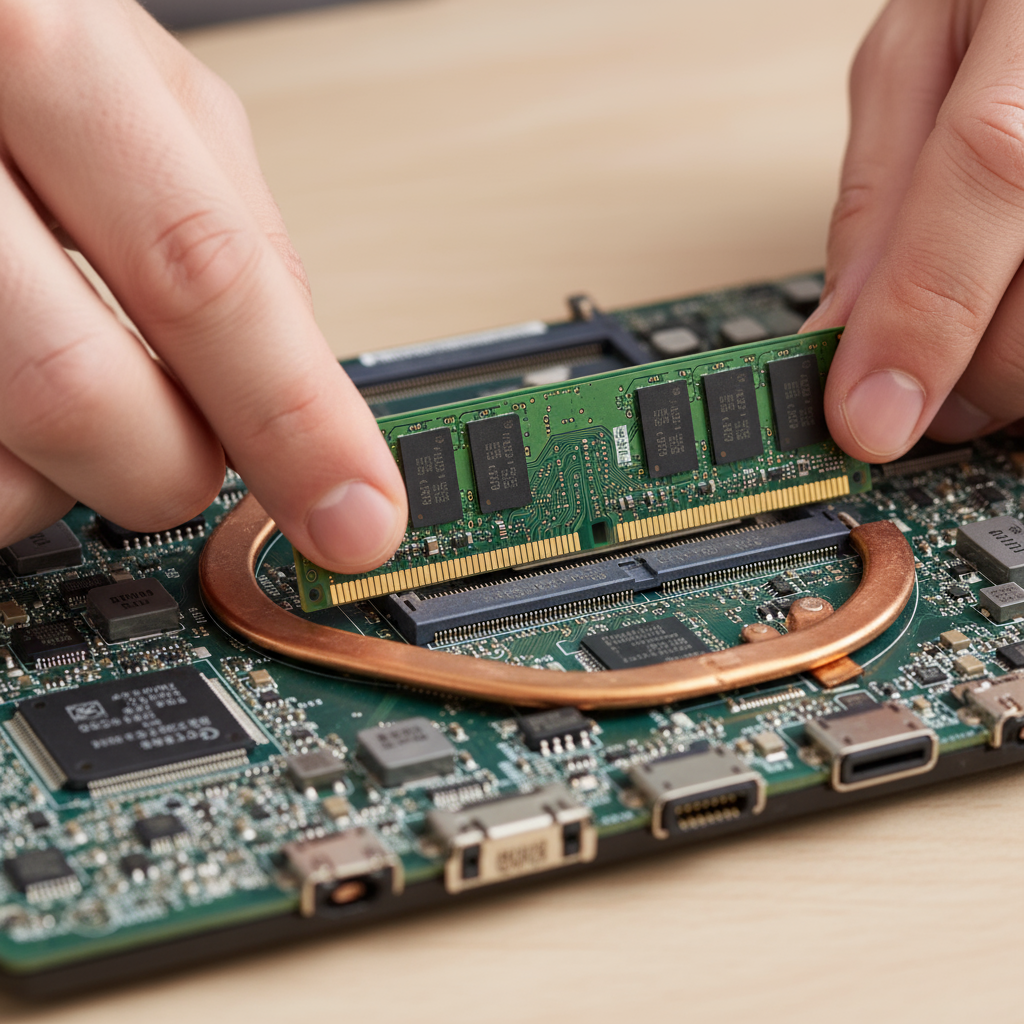
Next up: finding those memory slots. Your laptop manual is your best friend here, but online guides work too. Once you’ve got access, you’ll need to carefully remove the existing RAM modules—there are little locking clips that need to be released. Here’s where patience pays off: insert your new modules at the right angle and make sure they seat firmly. Don’t force anything. If it’s not going in easily, step back and check your approach. After everything’s installed, power up and check your system properties or BIOS to make sure the new memory shows up. If something seems off, don’t panic—there are good troubleshooting resources out there to help you figure out what’s going on.
Key Aspects of the Upgrade Process
Here’s what you need to keep in mind during your upgrade:
- Workspace Preparation: Anti-static wristbands, clean surfaces, and organized tools aren’t just nice-to-haves—they’re essential for protecting your laptop’s sensitive components from static damage that can fry circuits.
- System Shutdown and Disassembly: Complete power-off, unplugged cables, and removed batteries (when possible) create a safe environment for working inside your laptop. Rushing this step is asking for trouble.
- Installation Techniques: Gentle but firm insertion, proper alignment, and secure locking clips are the name of the game. Force things and you might end up with hardware damage or boot failures that could have been easily avoided.
- Post-Installation Testing: Your operating system’s system info and BIOS settings will tell you if everything worked. If not, reliable diagnostic guides can help you troubleshoot and get things running properly.

Here’s the bottom line: upgrading your laptop’s memory might just be the best bang for your buck when it comes to boosting performance. We’ve covered a lot of ground together—from figuring out whether you need DDR3 or DDR4 (spoiler alert: your laptop is pretty picky about this) to actually cracking open that case and sliding in new RAM modules. The key takeaways? Know your specs before you buy anything. Check how much memory your laptop can actually handle. And for the love of all things tech, count those memory slots first.
Look, things don’t always go perfectly. Sometimes your laptop acts like it’s never seen that new RAM before, or worse—it starts throwing tantrums with random crashes. But here’s what I’ve learned: most of these hiccups come down to simple installation issues or compatibility problems that are totally fixable. When everything clicks into place (literally), you’ll notice the difference immediately. Faster multitasking? Check. Apps that actually load without making you grab a coffee? Double check. Your laptop will feel like it just had its morning espresso.
Ready to dive deeper? I’ve got you covered with some seriously helpful resources. First up, our detailed walkthrough on how to upgrade laptop RAM—it’s specifically designed for laptop hardware and walks you through every single step. If you’re curious about desktop upgrades too (or just want to understand the bigger picture), check out our guide on how to upgrade PC RAM. It’s packed with troubleshooting tips that work for pretty much any system. Here’s something most people forget: after you upgrade your RAM, you should really update your drivers. Our resource on how to update laptop drivers will help you squeeze every ounce of performance from that new hardware. And while we’re talking speed improvements, don’t sleep on SSD technology—our guide to the best laptops with SSD drives might just convince you to make storage your next upgrade project.
I get it—opening up your laptop for the first time can feel a bit nerve-wracking. But honestly? You’ve got this. Think of it as giving your trusty machine a well-deserved upgrade, not performing brain surgery. Plus, there’s something incredibly satisfying about knowing you made your laptop faster with your own two hands. Keep exploring, stay curious about new tech, and remember—every expert was once a beginner who decided to give it a shot. Your newly upgraded laptop is going to serve you well for years to come.


