Table of Contents
Introduction
Is your computer driving you absolutely crazy? You know the drill—clicking on an app and waiting… and waiting… while your PC struggles to keep up. Or maybe you’re in the middle of something important when suddenly everything freezes. Frustrating, right? Here’s the thing: your computer probably isn’t broken. It might just need more RAM.
Random Access Memory (RAM) is basically your computer’s short-term memory, and when there’s not enough of it, everything slows to a crawl. Think of it like your brain trying to juggle too many things at once—eventually, you’re going to drop something. Whether you’re gaming, working on big projects, or just trying to browse the web without wanting to throw your laptop out the window, a RAM upgrade can be a total game-changer.
Now, before you panic about opening up your computer (I get it—it’s intimidating), here’s some good news: upgrading RAM is actually one of the easiest and most affordable ways to breathe new life into your machine. Seriously. If you can plug in a USB cable, you can probably handle this. And if you need a detailed walkthrough, this comprehensive guide on how to upgrade PC RAM breaks everything down step-by-step, whether you’re a complete beginner or someone who’s done this before.
Here’s what’s happening when your computer feels sluggish. When you don’t have enough RAM, your system starts using your hard drive or SSD as backup memory. The problem? That’s way slower than actual RAM. It’s like trying to work with all your files stored in a basement instead of on your desk—you can get what you need, but it takes forever. A RAM upgrade doesn’t just make things faster; it can actually help your computer last longer too. And if you’re working with a laptop, there’s specialized advice on how to upgrade laptop RAM that’ll keep you safe during the process.
Software keeps getting hungrier for resources (thanks, modern apps). That’s just reality. But you can fight back. Pairing a RAM upgrade with other improvements—like upgrading graphics drivers—can really maximize what your PC can do. Sometimes though, slowness isn’t just about RAM. If you’re dealing with other performance issues, learning how to fix slow computer problems holistically might help you tackle everything that’s holding your system back.
What You’ll Learn in This Guide
Okay, let’s cut to the chase. This guide is going to walk you through everything you need to know to upgrade your RAM without breaking anything (or breaking the bank). By the time we’re done, you’ll know exactly what you’re working with, what to buy, and how to install it properly. Here’s what we’re covering:
- Understanding Your Current RAM: First things first—we’ll figure out what RAM you have now so you can choose something that actually works with your system.
- Choosing the Right RAM: DDR3, DDR4, DDR5… speeds, sizes, all that technical stuff. Don’t worry, we’ll make sense of it all so you can make smart decisions.
- Step-by-Step Installation: The actual hands-on part. We’ll go through exactly how to install RAM in both desktops and laptops, plus all the safety stuff you need to know.
- Troubleshooting Common Issues: Because sometimes things don’t go perfectly the first time. We’ll cover what to do if your computer won’t boot up or doesn’t recognize your new RAM.
As we work through all this, you’re not just learning how to upgrade RAM—you’re building actual tech skills that’ll serve you well down the road. And speaking of the road ahead, it’s worth understanding where technology is heading. This article about latest technology trends 2025 gives you insight into what’s coming next, which might influence how you approach upgrades now.
While we’re talking about keeping your system running smoothly, let’s be real—hardware upgrades are only part of the picture. You’ve also got to think about security and keeping your software organized. Check out these resources on software for password management and how to prevent phishing scams to keep your newly upgraded system safe from threats.
In the sections coming up, we’ll break down every single step of your RAM upgrade journey. You’ll learn the prep work, the installation process, and what to do if something goes sideways. With the right approach, you’re going to see a real difference in how fast your computer responds and how many things you can do at once. Ready to give your PC the boost it’s been begging for?
Look, upgrading your RAM is one of those rare tech solutions that’s actually affordable and makes a huge difference. Whether you’re working, gaming, or just trying to get things done without your computer having a meltdown, this upgrade is worth it. For even more detailed guidance, you might want to check out these related resources: how to upgrade computer RAM and how to upgrade laptop memory to round out your knowledge.
So stick with me as we dive into compatibility, installation, safety tips, and troubleshooting. Your computer’s performance makeover is closer than you think!

Want to speed up your computer? RAM upgrades are probably your best bet. But here’s the thing—you can’t just walk into a store and grab any memory stick off the shelf. Your computer has specific needs, and RAM (that’s Random Access Memory, by the way) is basically your PC’s short-term memory. Think of it like your desk space—the bigger it is, the more projects you can work on at once without constantly shuffling papers around. Before you spend a dime on new memory, you need to know what you’re working with right now. What type do you have? How fast is it? How much space is left? Getting these details right means the difference between a smooth upgrade and a frustrating waste of money.
Understanding Your Current RAM
First things first—let’s figure out what’s already in your computer. You wouldn’t buy shoes without knowing your size, right? Same principle here. Your current RAM setup tells you everything about what you can and can’t upgrade to. The good news? You don’t need to crack open your computer case just yet. Tools like Task Manager (Windows key + Shift + Esc), CPU-Z, or your built-in System Information can spill all the details in seconds. But don’t stop there. Grab your motherboard manual or look up its specs online—this tells you the maximum RAM your system can actually handle and what types it supports. Trust me, doing both saves you from buying memory that won’t even fit. If you want the full picture on upgrade basics and why these technical details matter so much, check out our detailed guide on how to upgrade computer RAM.
Now, here’s where it gets interesting. RAM isn’t just about size—speed matters too. A lot. Your new memory needs to play nice with your motherboard’s supported frequencies, or you’ll leave performance on the table. It’s like having a sports car stuck in traffic—all that potential, nowhere to go. While you’re researching all this, it doesn’t hurt to think ahead. Technology moves fast, and staying current with the latest technology trends in 2025 can help you make choices that’ll keep your computer relevant longer. Once you’ve got all this information, you’ll know exactly what RAM will work with your setup and actually deliver the performance boost you’re after.
Key Aspects of Understanding Your Current RAM
When you’re checking out your existing RAM setup, focus on these four critical areas that’ll determine what upgrade options you actually have:
- RAM Capacity: How much memory do you have right now? This tells you whether you need more to handle your daily tasks—gaming, video editing, running fifty browser tabs at once (we’ve all been there). Desktop and laptop needs vary wildly, so knowing your current capacity helps you buy the right amount instead of guessing.
- RAM Type (DDR3, DDR4, DDR5): This is huge. Your motherboard only accepts specific types, and they’re not interchangeable. Each generation has different physical connectors, speeds, and power needs. Get this wrong, and your new RAM literally won’t fit. Get it right, and you avoid headaches and wasted money.
- RAM Speed or Frequency: Measured in MHz, this determines how quickly your RAM can shuffle data around. Your upgrade should match or beat your current speed while staying within your motherboard’s limits. No point buying Formula 1 tires for a city car, you know?
- Physical Slots and Configuration: Count your RAM slots and see how many are occupied. Most motherboards perform better with memory installed in pairs (dual channel), so planning your configuration can actually boost performance beyond just adding more memory.
Getting a handle on these basics puts you in control of your upgrade. You’ll know exactly what to buy and why it’ll work with your system. This builds on everything covered in how to upgrade PC RAM, which digs deeper into common upgrade scenarios and what works best in different situations. Ready to actually install that new memory? Let’s talk about the hands-on part.
How to Upgrade (Install) RAM in Your PC
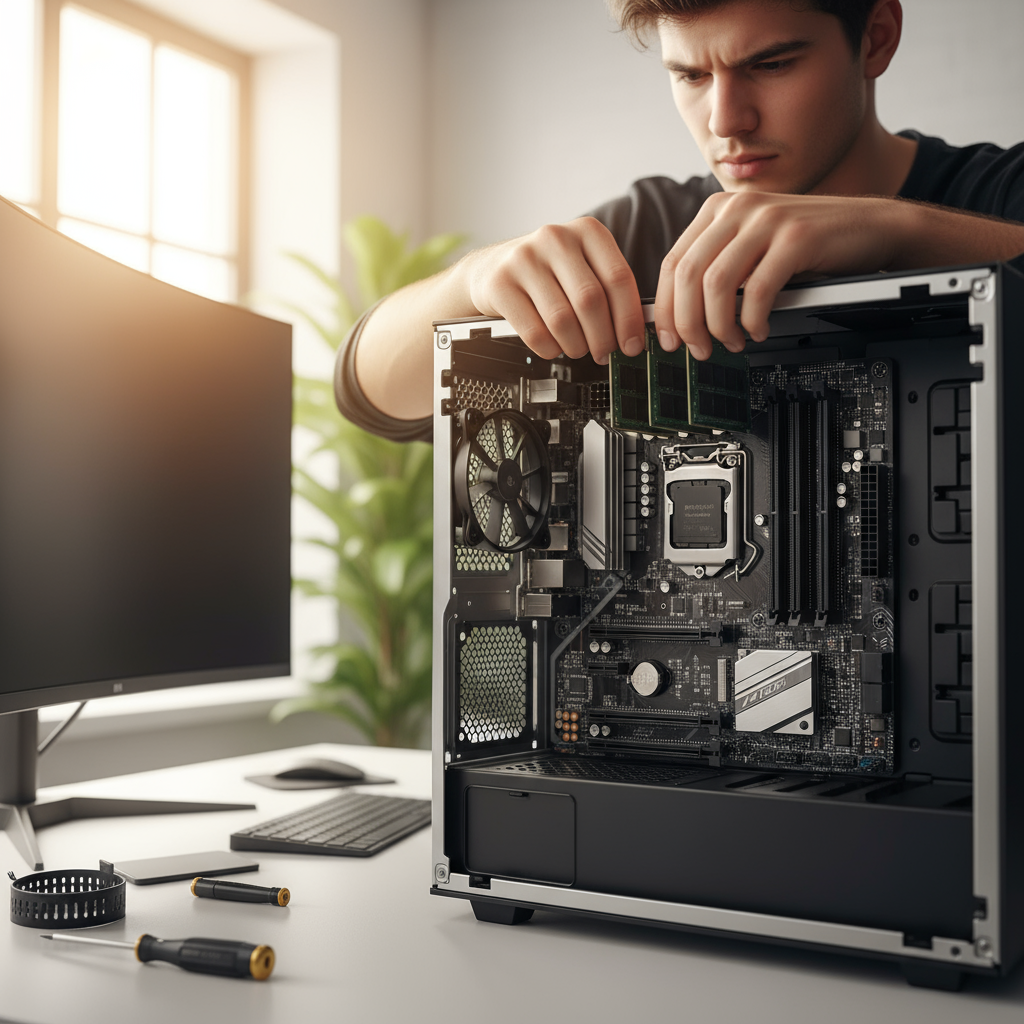
Here’s where the rubber meets the road. Installing RAM is honestly one of the easiest and most rewarding upgrades you can do. Seriously—if you can plug in a USB cable, you can install memory. But (and this is important) you need to do it right. We’re talking about sensitive electronics here, so there are rules. Safety first: power down your computer completely and unplug it. Static electricity is RAM’s worst enemy, so ground yourself before touching anything. Most computer cases open pretty easily these days, and once you’re inside, those memory slots are usually pretty obvious. The whole process might seem intimidating at first, but it’s more like adult LEGO than rocket science.
Want a complete walkthrough with pictures and everything? Our step-by-step guide covers every detail from finding your memory slots to making sure everything works afterward. And if your computer’s been running like molasses lately, a RAM upgrade might be exactly what it needs—check out how to fix slow computer to see how memory upgrades fit into the bigger picture of system optimization. Whether you’re working on a desktop tower or a laptop, following the right steps means your upgrade will work perfectly without any unpleasant surprises.
Key Aspects of RAM Installation
Installing RAM successfully comes down to following a few critical steps and not rushing through any of them. Here’s what matters most:
- Powering Off and Safety Precautions: Turn off your computer and unplug it completely. No shortcuts here—electricity and computer components don’t mix well with human fingers. Ground yourself with an anti-static wrist strap if you have one, or just touch a metal part of the case periodically. Your RAM will thank you.
- Accessing RAM Slots Correctly: Take your time opening the case—don’t force anything. Most modern cases have thumb screws or simple latches. Once inside, locate your RAM slots (they’ll have little clips on the ends) and gently release these clips if you need to remove old memory first.
- Installing New RAM Modules: This is the satisfying part. Line up the notch on your RAM stick with the slot on your motherboard—it only goes in one way. Press down firmly and evenly until those clips snap into place. You should hear a definite click. If you don’t, the RAM isn’t seated properly.
- Post-Installation Checks: Close everything up, plug back in, and power on. Your computer should recognize the new memory automatically. Check your system information to confirm the new amount shows up. If something seems off, don’t panic—just double-check that everything’s seated correctly.
Follow these steps and you’ll avoid the most common RAM installation problems—like memory not being detected or random crashes after an upgrade. Working on a laptop instead? The process is similar but trickier, so how to upgrade laptop memory has laptop-specific tips that’ll save you time and frustration. And hey, if you’re planning multiple upgrades or want to budget properly for your tech improvements, a financial calculator can help you plan your spending and make sure you’re getting the best bang for your buck.

Want to give your PC a serious speed boost? Upgrading your RAM is one of the smartest moves you can make. We’ve walked through everything together—from figuring out what RAM you currently have to choosing the right upgrade and actually installing it without breaking anything. (Trust me, that last part is easier than it sounds once you know what you’re doing.)
The key is understanding what your PC can handle before you buy anything. Getting the wrong type or speed? That’s just money down the drain. But when you nail the compatibility part and follow proper installation steps—grounding yourself, being gentle with those components, and double-checking everything—you’ll avoid those heart-stopping moments when your PC won’t boot up.
Now, here’s something most people don’t think about: things can still go sideways even when you do everything right. Maybe you hear some weird beeps, or your system starts acting up. Don’t panic. We covered troubleshooting for a reason. When you know how to spot and fix common issues, you’ll save yourself hours of frustration (and probably a call to your tech-savvy friend).
A RAM upgrade isn’t just about today—it’s about giving your PC legs for the future. Whether you’re gaming, editing videos, or just tired of waiting forever for programs to load, more RAM makes everything smoother. And honestly? It’s one of the most cost-effective upgrades you can do.
Ready to take this further? You’ll want to check out our detailed guide on how to upgrade computer RAM—it dives deeper into the nitty-gritty details that’ll make you feel like a pro. Got a laptop instead? No worries. Our guide on how to upgrade laptop memory covers all those tricky spots where laptops like to be difficult. And if your computer’s still running slow after the RAM upgrade, our resource on how to fix a slow computer will help you tackle the other culprits. Plus, if you’re curious about where tech is heading and how it might affect your next upgrade decisions, take a look at latest technology trends 2025.
Look, upgrading your RAM might seem intimidating at first, but it’s honestly one of the most rewarding things you can do for your computer. You’ll see the difference immediately—faster boot times, smoother multitasking, less of that spinning wheel of doom. Take your time, follow the steps, and don’t be afraid to double-check everything. Your future self (and your computer) will thank you for it. The best part? Once you’ve done it once, you’ll wonder why you waited so long.
Frequently Asked Questions
-
How do I know how much RAM my PC can support?
- Check your motherboard or system specifications in the manual or manufacturer’s website. This provides the maximum supported capacity and compatible RAM types for your system.
-
Is it better to buy one large RAM stick or multiple smaller ones?
- Multiple sticks can enable dual channel mode, improving performance. However, check your motherboard’s configuration to ensure compatibility and optimal setup.
-
Can I mix different brands or speeds of RAM?
- Mixing is possible but not ideal. It may cause instability or limit speed to the slowest module. Matching brands and speeds promotes smoother performance.
-
Do I need to upgrade both RAM sticks if my PC has two slots?
- Not necessarily. You can add or replace one stick, but for best performance, matching size and speed across both sticks is recommended.
-
Will upgrading RAM fix a slow PC?
- It can improve multitasking and speed, but other factors like storage and CPU also affect performance. Consider a holistic system upgrade.


