Table of Contents
Introduction
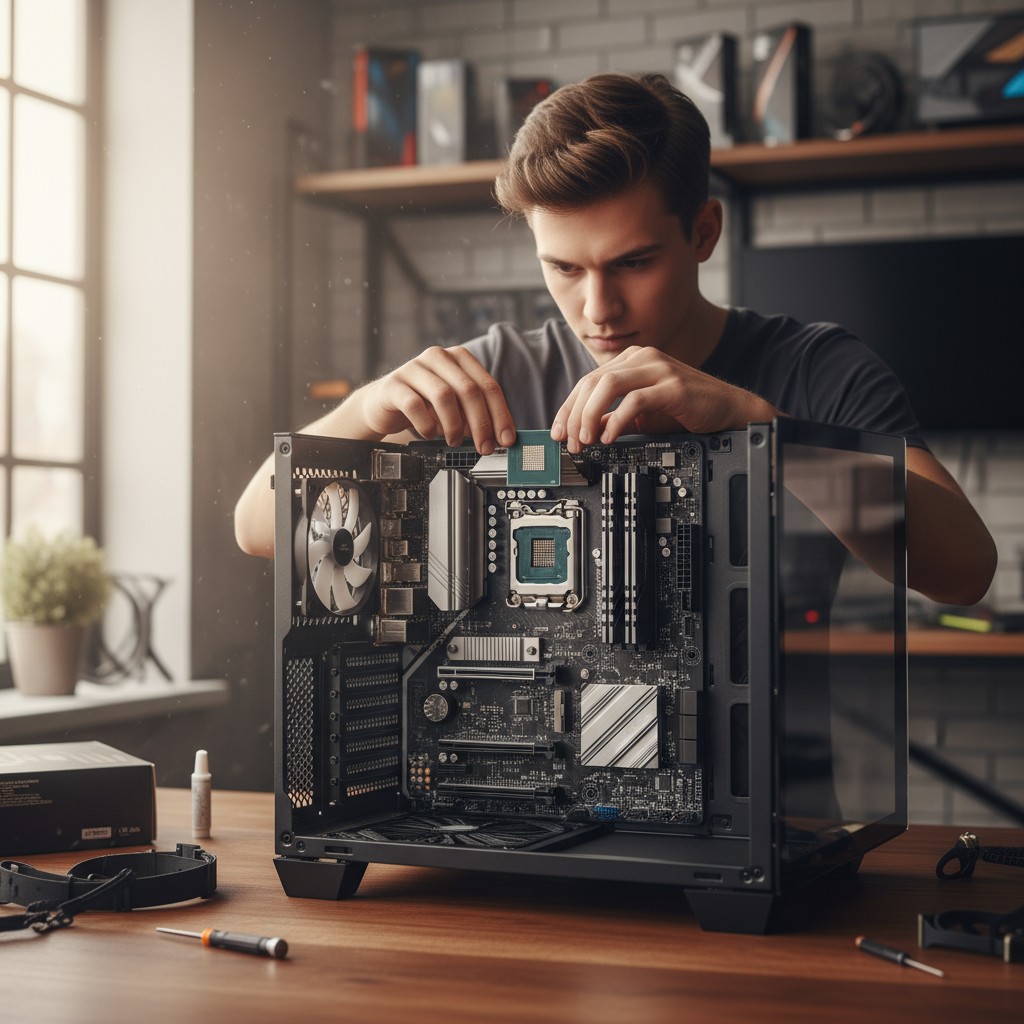
Your computer’s feeling sluggish lately? That CPU might be the culprit. Upgrading your processor can completely transform how your machine performs—we’re talking about turning those frustrating loading screens into smooth, responsive computing. Whether you’re gaming, editing videos, or just tired of waiting forever for programs to open, a CPU upgrade could be exactly what you need.
Now, here’s where most people get it wrong. They think bigger numbers automatically mean better performance. Not quite. The trick is finding a processor that actually works with your existing setup while giving you the performance boost you’re after. You’ve got to consider your motherboard’s socket type, your power supply, and whether your BIOS can even handle the new chip. It’s like buying new shoes—doesn’t matter how great they look if they don’t fit. Speaking of upgrades that work well together, understanding how to upgrade computer RAM can give your system an even bigger performance boost when paired with a new CPU.
Before you crack open that case, you need to do some homework. Check that socket type first—your shiny new CPU won’t work if it doesn’t physically fit your motherboard. (Trust me, I’ve seen people learn this the hard way.) Then there’s the BIOS update, which sounds scarier than it is but definitely needs to happen. And don’t forget about your power supply—some of these newer processors are hungry for electricity. Miss any of these steps? You might end up with a very expensive paperweight. The good news is that staying informed about technology trends helps you understand how these hardware advances fit into the bigger picture of computing.
Think about what you actually do with your computer. Are you gaming until 2 AM? Editing videos for work? Just browsing and doing office tasks? Your usage determines which CPU makes sense. No point spending $500 on a processor if you’re just checking email and watching Netflix. But if you’re serious about gaming, you’ll want to look at resources like this gaming PC build guide to see how your CPU choice affects your entire system’s performance.
What You’ll Learn in This Guide
We’re going to walk through this upgrade step by step, so you feel confident every step of the way. No tech jargon overload—just practical advice that actually helps.
- Understanding Your Current CPU and System Compatibility: Learn to identify your CPU model, check motherboard compatibility including socket type, BIOS updates, and power supply considerations to prepare your system effectively.
- Choosing the Right CPU Upgrade: Discover how to select a CPU that meets your performance needs, fits your budget, and provides future-proofing to maximize investment value and satisfaction.
- Step-by-Step Guide to Physically Upgrading Your CPU: Follow detailed instructions on safely removing the old CPU, installing the new one with proper thermal paste application, and reassembling your computer for optimal performance.
- Post-Upgrade Steps and Troubleshooting: Understand how to update drivers and BIOS settings, monitor system stability, and troubleshoot common issues such as boot problems or overheating to ensure a smooth transition.
While we’re talking upgrades, don’t sleep on your RAM either. A CPU upgrade paired with more memory can really make your system sing. Check out our guide on how to upgrade PC RAM if you want to go all-out on performance improvements. By the time we’re done here, you’ll know exactly how to upgrade your CPU without any of the usual headaches.
Look, upgrading a CPU isn’t rocket science, but it’s not exactly plug-and-play either. The key is making smart choices that match your needs and your system’s capabilities. We’ll cover everything from figuring out what you have now to choosing the right replacement to actually installing the thing without breaking anything.
I get it—opening up your computer can feel intimidating. What if you break something? What if it doesn’t work? That’s exactly why we’ve organized this guide to build your confidence as we go. Whether you’re upgrading for better gaming performance, faster work productivity, or just because your current CPU is showing its age, we’ve got you covered.
Ready to give your computer the boost it deserves? With everything we’ll cover—including some bonus tips on related upgrades and staying current with tech trends—you’ll have all the knowledge you need to make your CPU upgrade a complete success. Time to turn that sluggish machine into a powerhouse.

Thinking about upgrading your CPU? Smart move. A new processor can breathe fresh life into your system, making everything feel snappier and more responsive. But here’s the thing—you can’t just swap out CPUs like you’re changing batteries. There’s a whole compatibility puzzle to solve first, and trust me, getting this wrong can turn your upgrade dreams into an expensive nightmare. Before you even think about shopping for that shiny new processor, you need to know exactly what you’re working with right now. We’re talking CPU model, motherboard compatibility, BIOS updates, and whether your power supply can actually handle what you’re planning. Once you’ve got that sorted, then we can dive into picking the perfect CPU that’ll give you the performance boost you’re after without breaking the bank or your system.
Understanding Your Current CPU and System Compatibility
Here’s where most people want to skip ahead, but don’t. This step is absolutely crucial. You need to know what CPU you currently have—and I mean the exact model, not just “it’s an Intel something.” The easiest way? Fire up a system diagnostic tool or check your system information through your operating system. Takes two minutes, saves you hours of headaches later.
Now comes the part that trips up a lot of people: making sure your motherboard will actually play nice with your new CPU. It all comes down to the socket type. Think of it like this—your CPU is a puzzle piece, and your motherboard has a very specific shaped slot. They have to match perfectly, or you’re not getting anywhere. LGA1151, AM4, LGA1200—these aren’t just random numbers. They’re the difference between a successful upgrade and a very expensive paperweight. If you’re new to hardware upgrades in general, checking out guides like how to upgrade PC RAM can give you a solid foundation in compatibility basics that apply across different components.
But wait—there’s more to worry about. (I know, I know.) Your BIOS needs to be in the loop too. Motherboard manufacturers regularly release BIOS updates that add support for newer CPUs, fix bugs, and patch security holes. Updating your BIOS before the CPU swap isn’t just recommended—it’s essential. Skip this step, and you might find yourself staring at a black screen wondering what went wrong. And while we’re talking about power, let’s not forget your PSU. Newer, more powerful CPUs often need more juice than what you’re currently feeding your system. The last thing you want is your power supply throwing in the towel when you’re finally ready to see what your new CPU can do. For more insights on managing power requirements during upgrades, how to upgrade computer RAM covers similar considerations that’ll help you think through the whole system.
Key Aspects of System Compatibility
Let’s break down what you absolutely need to check before moving forward:
- CPU Identification Techniques: Get familiar with tools like CPU-Z or your operating system’s built-in diagnostics. You need to know exactly what processor you’re starting with—model, generation, the works. This isn’t the time for guesswork.
- CPU Socket Type Verification: Your new CPU and motherboard socket must match exactly. No exceptions, no workarounds. Socket types like LGA1151 or AM4 aren’t suggestions—they’re requirements. Get this wrong, and nothing else matters.
- BIOS Firmware Updates: Head to your motherboard manufacturer’s website and grab the latest BIOS update before you do anything else. Yes, BIOS updates can be nerve-wracking, but they’re often the difference between success and failure.
- Power Supply Requirements: Check your PSU’s wattage and make sure it can handle your new CPU’s power demands. High-performance processors are hungry beasts, and an underpowered supply will cause nothing but trouble.
Getting these compatibility basics right isn’t glamorous, but it’s what separates successful upgrades from expensive mistakes. When you nail this foundation, you’re setting yourself up for an upgrade that actually delivers the performance boost you’re investing in. Ready to move on? Let’s talk about picking the CPU that’s going to transform your computing experience.
Choosing the Right CPU Upgrade
Now for the fun part—actually picking your new CPU. But don’t get too excited yet, because this decision is all about matching your needs with your reality. Are you a gamer who needs those high clock speeds and multiple cores for the latest titles? Or maybe you’re more of a productivity powerhouse who needs serious multi-threading for video editing or 3D rendering? Your use case should drive everything.
Then there’s the budget reality check. We’d all love the flagship processor, but sometimes the mid-range option gives you 90% of the performance for 60% of the price. Smart shopping means diving into benchmarks, reading real user reviews (not just the marketing material), and figuring out where you get the most bang for your buck. And here’s a pro tip: if you’re planning other upgrades down the line, resources like how to upgrade PC RAM can help you plan a more comprehensive system refresh that makes sense financially.
Even after you’ve picked your ideal CPU, circle back to compatibility one more time. I’ve seen too many people fall in love with a processor only to discover their motherboard chipset doesn’t support it. Double-check everything: socket, chipset, BIOS support—the whole nine yards. And while you’re thinking long-term, consider future-proofing. Spending a bit more now for a CPU that’ll stay relevant for years can save you from another upgrade cycle sooner than you’d like. For a broader perspective on planning system upgrades that work together, how to upgrade computer RAM offers some solid strategies for thinking holistically about your build.
Key Aspects of Choosing a CPU Upgrade
Here’s what you need to nail down before making your final decision:
- Match Your Use Case: Be honest about what you actually do with your computer. Gaming, content creation, productivity work—they all have different CPU sweet spots. Pick the processor that excels at your primary tasks, not the one that looks coolest on paper.
- Check Compatibility Thoroughly: I can’t stress this enough—verify socket, chipset, and BIOS support one more time. Compatibility issues don’t get less expensive just because you really want that particular CPU.
- Consider Future-Proofing: Think about where technology is heading. More cores, better efficiency, support for new standards—investing in these features now can extend your upgrade’s useful life significantly.
- Balance Budget and Performance: Find the sweet spot where price meets performance for your specific needs. The most expensive CPU isn’t always the best choice, and the cheapest option might leave you wanting more power sooner than expected.

So there you have it—upgrading your computer’s CPU really can transform how your system performs. We’ve walked through everything you need to know: figuring out what you’re working with, making sure everything plays nicely together, and picking the right processor for your specific needs. Getting familiar with things like socket types, BIOS updates, and whether your power supply can handle the new chip? That’s the stuff that makes or breaks your upgrade. And when you get it right, you’re not just boosting speed—you’re setting yourself up for whatever comes next in the tech world.
Here’s the thing about choosing the right CPU: it’s all about finding that sweet spot between what you actually need and what you’re willing to spend. Whether you’re gaming, editing videos, or just want your computer to stop freezing when you have twenty browser tabs open, there’s a processor out there that fits. Plus, when you pair that shiny new CPU with components that can keep up, you’re basically giving your computer a whole new lease on life. Just remember—proper installation and those post-upgrade tweaks (yes, even the boring driver updates) are what keep everything running smoothly and prevent those heart-stopping moments when your computer won’t boot.
Ready to take things further? Your CPU upgrade is just the beginning. Consider boosting your memory next—our guide on how to upgrade computer RAM breaks it down step by step, so you can pair that new processor with the memory it deserves. And if you’re working with a PC specifically, check out our detailed walkthrough on how to upgrade PC RAM for tips that’ll help you get the most out of your machine. While you’re planning your upgrades, it’s worth staying ahead of the curve—our look at the latest technology trends for 2025 shows how AI, IoT, and robotics might shape your future upgrade decisions. And if you’re curious about how all this tech evolution affects different industries, our piece on technology in financial services offers some fascinating insights into the bigger picture.
Look, upgrading your CPU doesn’t have to be intimidating. You’ve got the knowledge now, and honestly? That’s the hardest part. When you actually get in there and start working, you’ll probably surprise yourself with how straightforward it can be. The payoff—a computer that actually keeps up with you instead of holding you back—is absolutely worth it. Keep learning about new hardware and stay curious about optimization techniques. Your future self (and your productivity) will thank you. Why not start today?
Frequently Asked Questions
-
Can I upgrade my CPU without changing my motherboard?
- Yes, as long as the new CPU is compatible with your motherboard’s socket type and chipset, you can upgrade without replacing the motherboard.
-
Do I need to update BIOS before upgrading the CPU?
- Updating your BIOS is usually necessary to add support for newer CPUs and ensure your system runs smoothly after the upgrade.
-
Will upgrading my CPU improve gaming performance?
- Upgrading your CPU often enhances gaming performance, particularly in games that rely heavily on processor speed and multiple cores.
-
How do I apply thermal paste correctly?
- Apply a small, pea-sized amount of thermal paste at the center of the CPU before installing the cooler to ensure efficient heat transfer.
-
What should I do if my computer doesn’t boot after the upgrade?
- Check all connections, verify CPU compatibility, update or reset BIOS settings, and ensure your power supply meets the new CPU’s requirements.


