Table of Contents
Introduction
Hearing weird noises from your laptop lately? Or maybe it’s getting so hot you could practically fry an egg on it? Yeah, we’ve all been there. Those are telltale signs that your laptop fan is probably stuffed with dust and debris—and trust me, that’s not doing your computer any favors. A clogged fan can’t cool your device properly, which means trouble ahead. Whether you use your laptop for Netflix binges or you’re grinding through work presentations, knowing how to clean that fan properly can save you from expensive repairs and those moments when your laptop decides to take an unexpected nap.
Here’s the thing about laptop fans—they’re the unsung heroes keeping your machine from turning into a very expensive paperweight. When dust builds up inside (and it will), your laptop’s internal temperature can spike by up to 20%. That’s not just a number—it’s the difference between smooth performance and watching your system crawl along like it’s stuck in molasses. Your laptop starts throttling itself to prevent damage, which means slower speeds and random shutdowns. Not fun when you’re trying to meet a deadline. Before diving into fan cleaning, you might want to check out how to clean your laptop keyboard too, since dust loves to party in multiple places at once.
Look, I get it. Opening up your laptop feels intimidating. What if you break something? What if you can’t get it back together? But here’s some good news—with the right approach, cleaning your laptop fan is totally doable. You don’t need to be a tech wizard. A few basic tools like compressed air, small screwdrivers, and soft brushes will get you there. And those anti-static wristbands? They’re like insurance for your hardware—cheap protection against accidental zaps. Want to make sure you’re doing everything right? Learning how to clean your laptop fan properly means avoiding those “oops” moments that turn a simple cleaning into a repair shop visit.
While we’re talking about keeping your laptop happy, fan cleaning is just one piece of the puzzle. Think of it like car maintenance—you wouldn’t just change the oil and ignore everything else, right? Same deal with laptops. Pairing a clean fan with updated drivers keeps everything running smoothly. If you’re curious about the driver side of things, how to update laptop drivers is worth exploring. When your fan is clean and your drivers are current, your laptop practically purrs instead of sounding like a jet engine.
What You’ll Learn in This Guide
Ready to give your laptop the TLC it deserves? This guide covers everything you need to know about fan cleaning, from start to finish. Here’s what we’ll tackle together:
- Understanding the Importance: We’ll break down why a clean fan matters so much—how it prevents overheating, boosts performance, and keeps your laptop alive longer. Plus, you’ll learn to spot the warning signs that your fan needs attention.
- Gathering the Right Tools: No guesswork here. You’ll get a complete list of what you need for safe, effective cleaning—compressed air, screwdrivers, brushes, and those handy anti-static wristbands that prevent you from accidentally frying your laptop.
- Step-by-Step Cleaning Process: We’ll walk through every single step, from safely opening your laptop to getting all that dust out and putting everything back together. Think of it as your personal cleaning roadmap.
- Maintenance Tips and When to Seek Help: Learn the tricks for keeping your fan cleaner longer, plus how to recognize when it’s time to call in the pros. Sometimes knowing when to stop is just as important as knowing how to start.
Coming up, we’ll dive into the actual cleaning process—no stone left unturned. You’ll get insider tips for avoiding rookie mistakes and strategies for stretching the time between cleanings. And hey, if you’re on a roll with laptop maintenance, checking out how to clean laptop keyboard makes perfect sense. Why stop at the fan when you can give your whole laptop some love?
A cool-running laptop isn’t just about hardware—it’s about protecting everything you’ve stored on there. Your photos, your work, that novel you’ve been writing for three years. When your laptop overheats, all of that is at risk. This guide gives you the confidence to take control of your laptop’s temperature, reduce that annoying heat buildup, and get back to enjoying a machine that’s fast and whisper-quiet. No more thermal throttling, no more unexpected crashes, no more cursing at your screen.
Safety first, though—we’ll make sure you know how to ground yourself properly, take things apart without breaking anything, and clean gently enough to protect those delicate components. Being proactive with maintenance beats reactive repairs every single time. Your wallet will thank you, and so will your productivity. Let’s jump in and turn your overheated, noisy laptop back into the reliable workhorse it was meant to be.
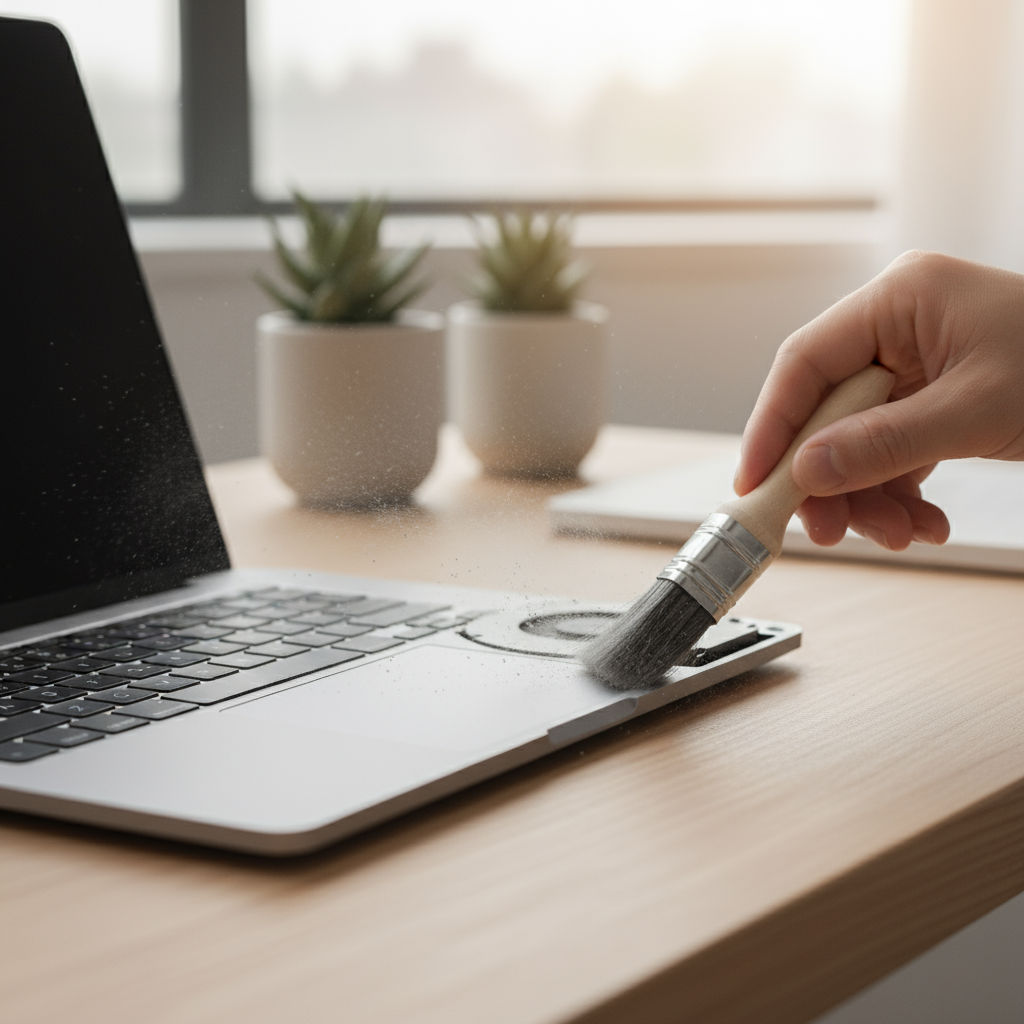
So here’s the thing about laptop fan cleaning—it’s one of those maintenance tasks that sounds boring but can literally save your machine’s life. When dust and debris build up in your fan, it’s like trying to breathe through a clogged straw. Your laptop starts overheating, slowing down, and eventually might just give up on you entirely. But here’s the good news: with the right approach, you can tackle this at home and keep your laptop running like new. Let’s walk through why this matters so much and exactly how to do it without breaking anything (trust me, that last part is important).
Why Cleaning Your Laptop Fan is Important
Your laptop’s cooling system is basically its lifeline. Think of the fan as your laptop’s personal air conditioner—when it gets clogged with dust, everything starts going wrong. The temperature shoots up, your laptop starts throttling performance to protect itself, and before you know it, you’re dealing with random shutdowns and that dreaded blue screen of death. Even worse? All that heat can literally cook your CPU and GPU over time, turning expensive components into very pricey paperweights. For context on why regular hardware maintenance matters so much, check out our guide on how to clean laptop keyboard—it’s all connected when it comes to keeping your tech healthy.
But here’s something you might not have considered: noise. Ever notice how your laptop sounds like a jet engine when it’s working hard? That’s often because dust-clogged fans have to spin faster and work harder just to move air around. Clean that dust out, and suddenly you’ve got a whisper-quiet machine that’s not constantly fighting against itself. Plus, your battery will thank you—clean fans use less energy, which means longer battery life. And speaking of comprehensive care, combining fan maintenance with regular technology and software maintenance gives you the complete picture of laptop health.
Key Aspects of Maintaining Laptop Fans
Here’s what you need to keep in mind:
- Heat Management is Crucial: Laptops generate significant heat during operation, and the fan helps dissipate this heat. Proper cleaning ensures effective heat dissipation and prevents thermal throttling.
- Prevent Component Damage: Overheating due to dusty fans can damage sensitive hardware parts like the motherboard, processor, and battery.
- Enhance System Performance: Clean fans improve airflow, allowing laptops to maintain optimal performance levels without system slowdowns caused by heat.
- Extend Laptop Lifespan: Regular fan cleaning reduces stress on cooling components and internal electronics, contributing to a longer device life cycle.
Once you understand these basics, fan cleaning becomes less intimidating and more like routine car maintenance—something you just do to keep things running smoothly. Ready to get your hands dirty? Let’s dive into the actual cleaning process.
Step-by-Step Guide to Cleaning Your Laptop Fan
Okay, let’s be real here—opening up your laptop might feel a bit scary the first time. But with the right tools and a careful approach, it’s totally doable. The key is taking your time and not rushing through any step. Before you even think about touching a screwdriver, you’ll want to gather your supplies and create a clean workspace. Our detailed how to clean laptop fan guide covers specific techniques for different laptop models, so definitely check that out if you need model-specific advice.
First things first: power down completely. I’m talking shut down, unplug the charger, disconnect everything, and if possible, remove the battery. This isn’t just about being careful—it’s about avoiding the kind of expensive mistakes that turn a simple cleaning into a costly repair job. Once you’re sure everything’s powered off, grab your compressed air, small screwdrivers, and a good microfiber cloth. Having everything ready before you start makes the whole process so much smoother.
Key Aspects of the Cleaning Procedure
Here’s your step-by-step game plan:
- Open the Laptop Case Carefully: Use appropriate screwdrivers to remove screws and gently detach the laptop cover, exposing the fan and vents.
- Use Compressed Air to Remove Dust: Blow short bursts of compressed air to dislodge dust and debris from the fan blades and inner vents without spinning the fan excessively.
- Gently Brush Away Stubborn Dirt: Use a soft brush to carefully clean remaining dust from delicate fan blades and surrounding components, avoiding damage.
- Wipe Surfaces with a Microfiber Cloth: Clean accessible surfaces and vents to remove residual particles and improve overall cleanliness and airflow.
When you’re putting everything back together, take it slow. Double-check that all screws are secure but don’t overtighten them—laptop screws are surprisingly delicate. Once you power back up, listen carefully to how your fan sounds. It should be noticeably quieter, and your laptop should feel cooler during normal use. If something seems off—weird noises, irregular fan speeds, or anything that just doesn’t feel right—don’t ignore it. Sometimes these things need a professional touch. For more insights on tools and advanced maintenance techniques, our guide on laptop maintenance and upgrades has you covered.

So there you have it—everything you need to keep your laptop’s fan running like a champ. Here’s the thing: a clean fan isn’t just about preventing overheating (though that’s pretty important). It’s about giving your laptop the breathing room it needs to perform at its best. Think about it—when dust clogs up those tiny vents, your poor laptop has to work overtime just to stay cool. The result? Sluggish performance, annoying fan noise, and those dreaded unexpected shutdowns that always seem to happen at the worst possible moment.
We’ve walked through the whole process together: gathering your tools, carefully opening your laptop, using compressed air to blast away dust, gentle brushing for stubborn particles, and that satisfying final wipe-down with a microfiber cloth. Don’t skip the reassembly and testing phases—they’re your safety net to make sure everything’s working properly. And those preventative tips? They’re game-changers. Using your laptop on hard surfaces, keeping those air vents clear, and maybe investing in a cooling pad can save you from having to deep-clean as often. (Your future self will thank you.)
Here’s what I’ve learned from years of laptop maintenance: being proactive beats being reactive every single time. A well-maintained fan means faster performance and a quieter workspace. But—and this is important—trust your ears. If you hear weird grinding noises or clicking sounds after cleaning, don’t ignore them. Sometimes the issue runs deeper than surface dust, and that’s when it’s time to call in the pros. Better to spend a little on professional help than a lot on major repairs.
Ready to take your laptop care to the next level? You don’t have to stop at the fan. Your keyboard probably needs some love too—check out our guide on how to clean your laptop keyboard for tips that’ll keep those keys responsive and grime-free. And while you’re at it, outdated drivers can slow down even the cleanest laptop. Our detailed walkthrough on how to update laptop drivers will help you squeeze every bit of performance from your machine. Still dealing with a sluggish system? Our guide on how to fix a slow computer has practical solutions that actually work.
You’ve got all the tools and knowledge you need now. A clean fan, combined with good maintenance habits, will keep your laptop running cooler, quieter, and faster for years to come. The key is consistency—make this part of your regular tech routine, and you’ll avoid those panic moments when your laptop starts overheating during important work. Listen to what your device is telling you, don’t be afraid to get your hands a little dirty with maintenance, and remember: when in doubt, professional help is always worth it. Your laptop has been working hard for you—now it’s time to return the favor.
Frequently Asked Questions
-
How often should I clean my laptop fan?
- It is recommended to clean your laptop fan every 3 to 6 months depending on your usage and environment to ensure optimal cooling and performance.
-
Can I use a vacuum cleaner to clean my laptop fan?
- Using a vacuum cleaner is not recommended as it may cause static electricity damage; using compressed air is a safer and more effective method.
-
What if my laptop fan is making noise after cleaning?
- Noisy fans post-cleaning could indicate damage or loose parts; in such cases, it’s advisable to seek professional repair assistance.
-
Is it safe to open my laptop myself?
- Yes, opening your laptop is safe if you follow proper precautions, use the right tools, and your warranty conditions allow DIY maintenance.