
Table of Contents
Introduction
Picture this: you’ve got the latest operating system, all your apps are updated, but your computer still feels sluggish. Frustrating, right? Here’s something most people never think to check—your BIOS. That’s Basic Input/Output System, and it’s basically the behind-the-scenes manager that gets your hardware talking when you hit that power button. If your system’s acting up or you want to squeeze out better performance, a BIOS update might be exactly what you need.
Now, I get it. The idea of updating BIOS can feel pretty intimidating. (Trust me, I’ve been there.) Manufacturers are constantly pushing out updates to fix security holes, make hardware play nicer together, and keep everything running smoothly. But here’s the thing—most people avoid BIOS updates like the plague because they think it’s too risky or complicated. The truth? Understanding what BIOS actually does and how to update it safely can add years to your computer’s life and save you from those “why won’t this work?” moments. Want to dive deeper into the nuts and bolts? Our guide on how to update computer BIOS safely breaks down the whole process with expert tips for different systems.
Let’s talk prep work—because this is where most people either nail it or mess things up. First things first: back up your important stuff. Yes, BIOS update failures are rare, but when they happen, things can get messy temporarily. You’ll also want to know what BIOS version you’re currently running (no point updating if you don’t need to, right?). Some motherboards might ask you to create a bootable USB drive for the flashing process. If you want to get the preparation details just right, check out strategies from our how to upgrade computer RAM guide—it covers hardware compatibility and data protection tips that apply here too.
Here’s something interesting: BIOS reliability becomes even more critical when you look at how technology is evolving. Take smart home technology—when your house is running on interconnected devices, hardware stability isn’t just nice to have, it’s essential. BIOS updates are basically preventive maintenance for your computer, and understanding their role in the bigger tech picture can help you see why they’re worth doing (and why they’re not as scary as they seem).
What You’ll Learn in This Guide
We’re going to walk through this entire process together, step by step. Whether you’re a complete beginner or someone who’s tinkered with tech before, you’ll finish this guide feeling confident about updating your BIOS safely.
- Understanding BIOS and Its Importance: We’ll break down what BIOS actually does in your computer and why it’s such a big deal for startup and hardware management. Once you understand the fundamentals, the whole update process makes a lot more sense.
- Preparing for the Update: You’ll learn exactly what precautions to take and how to get your computer ready for the upgrade—from backing up your data to checking your current BIOS version and creating bootable media when needed.
- Step-by-Step Updating Process: I’ll show you how to find and download the right BIOS update from your manufacturer’s website, then walk you through installing it safely using the recommended tools and utilities.
- Managing Risks and Post-Update Checks: We’ll cover the common risks (and how to avoid them), plus give you expert tips for verifying your update worked and troubleshooting any hiccups along the way.
Coming up, we’ll start by figuring out exactly what motherboard and BIOS version you’re working with, then show you where to find those official updates. We’ll cover making proper backups and other prep essentials that keep your data safe. After that, we’ll get into the actual downloading and flashing process—both automatic and manual methods, depending on what your system needs. You’ll also learn about potential pitfalls like power failures during flashing (and how to avoid them), plus when it makes sense to call in a pro. For more insights on technology that works great with updated BIOS systems, take a look at our guide on how to build a personal computer—it’s packed with info about component compatibility and system optimization.
By the time you’re done with this guide, you’ll have everything you need to safely update your computer’s BIOS and enjoy better hardware compatibility, tighter security, and improved performance. Understanding each step clearly doesn’t just prevent things from going wrong—it gives you the confidence to keep your computer running at its best. We’ve got some great tips and expert advice coming up that make BIOS updates way less intimidating than you might think.
Ready to unlock your computer’s full potential? Let’s get started with mastering the BIOS update process and making sure your tech investment keeps delivering top performance for years to come.
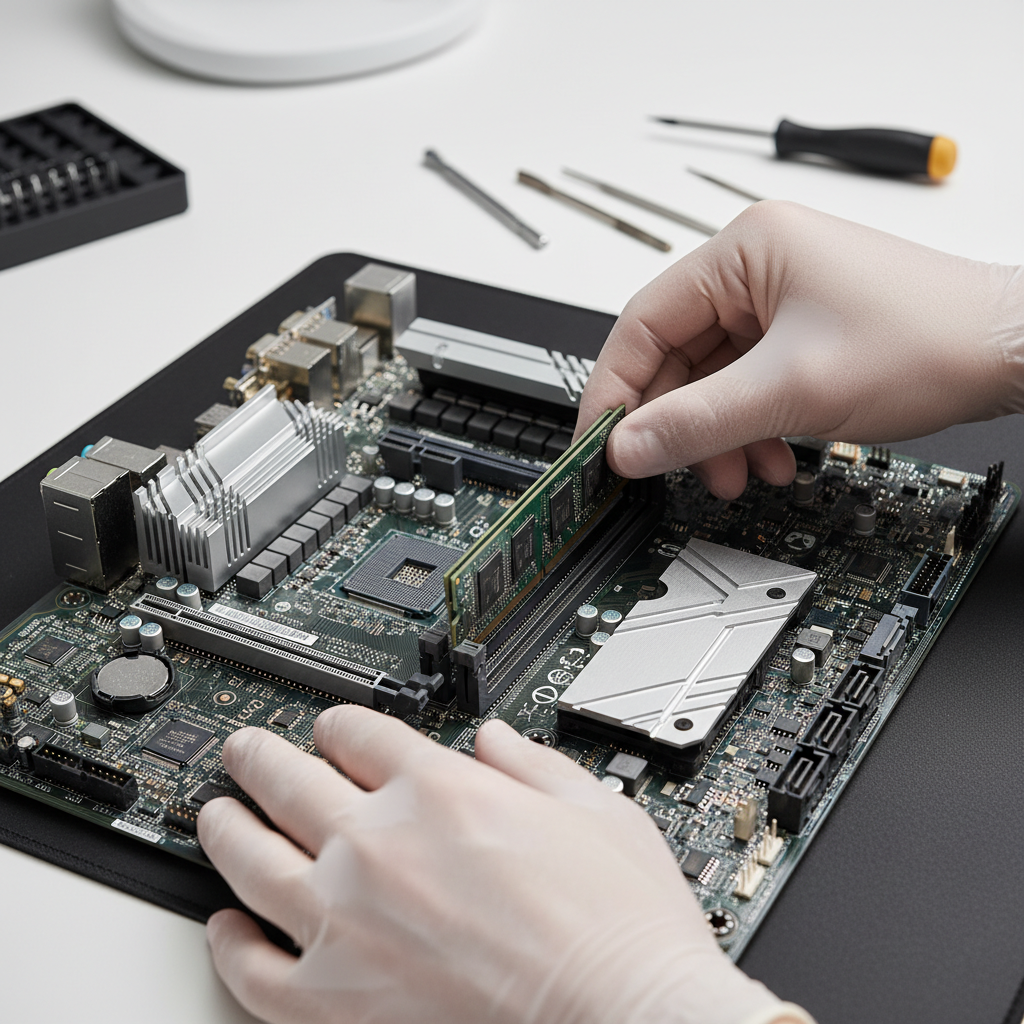
So we’ve talked about BIOS and how it affects your computer’s performance and security. Now let’s dig deeper into what BIOS actually is—and why you should care about keeping it updated. Think of BIOS (Basic Input/Output System) as your computer’s morning routine. It’s the first thing that wakes up when you hit the power button, checking that all your hardware is present and accounted for before handing control over to your operating system. When you update your BIOS, you’re essentially giving your computer a better morning routine—one that’s more stable, plays nicer with new hardware, and patches up security holes that could leave you vulnerable.
Understanding BIOS and the Importance of Updates
Here’s the thing about BIOS—it’s basically the translator between your operating system and your hardware. Every time you boot up, it’s running diagnostics, initializing components, and managing power like a busy backstage crew before a show. When your BIOS gets outdated? That’s when things start going sideways. You might see hardware that doesn’t play nice together, random crashes, or new components that your system just doesn’t recognize. (Ever plugged in a new graphics card only to have your computer act like it doesn’t exist? Yeah, that might be your BIOS talking.)
But here’s what really gets overlooked—BIOS updates are crucial for security. We’re not just talking about performance tweaks here. Cyber threats keep evolving, and your BIOS sits at the foundation of everything. If there’s a vulnerability at the firmware level, that’s a problem that needs fixing before your operating system even loads. Now, I won’t lie to you—updating BIOS isn’t something you do casually. Mess it up, and you could brick your system. That’s why preparation matters. A lot. You need to back up your data, double-check your current BIOS version, and follow the manufacturer’s instructions to the letter. Trust me, cutting corners here isn’t worth the headache.
Key Aspects of BIOS and Firmware
Let’s break down what makes BIOS updates so important. These are the core reasons why you should pay attention:
- Hardware Initialization and Configuration: Your BIOS runs the show during startup—checking your CPU, memory, storage, and all your peripherals. Without up-to-date BIOS, that shiny new hardware you just bought might not work properly (or at all). It’s like having a bouncer who doesn’t recognize the VIP list.
- System Startup Integrity: Think of BIOS as your system’s quality control manager. It makes sure everything checks out before letting your computer fully boot. Updates often speed up this process and improve the diagnostic tools that catch hardware problems early. Nobody wants their computer to fail mysteriously six months from now.
- Security Enhancements: This is the big one. BIOS updates patch vulnerabilities that hackers could exploit to get deep into your system—we’re talking firmware-level access here. These fixes happen before your antivirus even knows what’s going on.
- Firmware Compatibility: Technology moves fast. New CPU architectures, graphics cards, storage protocols—your BIOS needs to keep up. Without updates, you might find yourself unable to use cutting-edge hardware that should work perfectly with your system.
Once you understand these fundamentals, the next step is getting ready for the actual update process. And yes, there’s a right way and a wrong way to do this.
Preparing to Update Your BIOS Safely and Effectively
Let’s be real—updating your BIOS can feel intimidating. One wrong move and you could turn your computer into an expensive paperweight. But don’t let that scare you off. With the right preparation, it’s actually pretty straightforward. The golden rule? Back up everything important first. I’m talking comprehensive backup here—documents, photos, settings, the works. Power outages happen. Mistakes happen. Better safe than sorry.
Here’s what most people don’t realize: checking your current BIOS version isn’t just helpful—it’s essential. You need to know exactly what you’re running so you can grab the right update file. Install the wrong version? Game over. Many manufacturers require you to create a bootable USB drive for the update process. (Don’t worry, it sounds scarier than it is.) This USB becomes your safety net, carrying the update utility and new BIOS files. Most manufacturers provide step-by-step instructions for your specific motherboard or system. Follow them. Don’t improvise. And here’s a pro tip: make sure you have a stable power source. A UPS (uninterrupted power supply) is ideal, but at minimum, don’t do this during a thunderstorm.
Key Steps to Prepare Your BIOS Update
Here’s your pre-flight checklist for a successful BIOS update:
- Backup Important Data: This isn’t optional. Use external drives, cloud storage, whatever works—just make sure your critical files are safe. If something goes wrong during the update, you’ll thank yourself later.
- Check Current BIOS Version: You can usually find this in your system information or during the boot screen. Write it down. This tells you whether an update is even necessary and ensures you download the right files.
- Create a Bootable USB Drive: Most manufacturers provide utilities to make this easier. You’ll format a USB drive and load it with the flashing utility and BIOS files. The instructions are usually on the support website—follow them exactly.
- Ensure Stable Power Supply: This is where things can go catastrophically wrong. Any power interruption during the update could corrupt your BIOS completely. Use a UPS if you have one, or at least pick a time when power outages are unlikely.

So here we are—you’ve just learned why updating your computer’s BIOS isn’t just some techy thing you can ignore forever. It’s actually pretty critical for keeping your system running smoothly, staying secure, and making sure all your hardware plays nice together. Think of BIOS as your computer’s morning routine—it’s what gets everything started and organized before the real work begins. And just like any good routine, it needs the occasional update to stay effective.
You now know the drill: back up your important stuff, check what version you’re currently running, and create that bootable media (trust me, you don’t want to skip this step). The beauty of following these preparation steps? They make the whole process way less intimidating, whether you’re a tech newbie or someone who’s been tinkering with computers for years. We’ve walked through downloading updates from the right sources and installing them properly—because patience and following instructions to the letter really do make all the difference here.
But let’s talk about what happens after the update. This is where a lot of people breathe a sigh of relief and call it done—but there’s more to consider. You need to verify everything worked correctly and understand what could go wrong (like power outages at the worst possible moment or grabbing the wrong BIOS version). Here’s the thing though: regular BIOS updates aren’t just maintenance—they’re an investment in keeping your computer healthy and avoiding those “why is my computer acting weird?” moments that always happen at the worst times.
Ready to take your computer to the next level? Now that you’ve got BIOS updates down, it’s time to think about what else you can upgrade. RAM is usually the next logical step, and our guide on how to upgrade computer RAM will show you exactly how to give your system a serious speed boost. Feeling ambitious? Check out our complete walkthrough on how to build a personal computer—it’s like LEGO for adults, but way cooler. And here’s something most people don’t think about: all these upgrades and improvements cost money, so having an emergency fund makes a lot of sense. Our guide on how to build an emergency fund can help you prepare for unexpected tech expenses (because your graphics card will always die right before a big project deadline).
Look, taking charge of your BIOS updates—and your computer maintenance in general—puts you in the driver’s seat of your tech experience. No more feeling helpless when something goes wrong or wondering if you’re getting the most out of your hardware. You’ve got the knowledge now. You’ve got the resources. Most importantly, you’ve got the confidence to make smart decisions about your technology. The foundation you’re building today? It’s going to serve you well for years to come. So go ahead—embrace these improvements and enjoy that faster, more secure computing experience you’ve earned.
Frequently Asked Questions
-
What is BIOS and why is it important to update it?
- BIOS controls basic hardware startup and manages the communication between your operating system and hardware. Updating BIOS improves compatibility, fixes bugs, and enhances security.
-
How do I check my current BIOS version?
- You can check your BIOS version through system information tools or by viewing the BIOS splash screen during startup.
-
Is it safe to update BIOS myself?
- Yes, provided you carefully follow your manufacturer’s instructions and prepare adequately with backups and power stability.
-
What should I do if BIOS update fails?
- If the update fails and causes issues, it is best to seek professional help immediately to avoid further damage.
-
How often should BIOS be updated?
- Update BIOS only when necessary, such as to fix bugs, improve hardware compatibility, or address security vulnerabilities.


