
Table of Contents
Introduction
Let’s be honest—updating your computer’s BIOS sounds scary, right? I get it. The word “firmware” alone makes most people want to run the other way. But here’s the thing: it’s actually one of the most important things you can do to keep your computer running smoothly and securely.
Think of your BIOS (Basic Input/Output System) as your computer’s wake-up routine. Every morning when you turn on your machine, the BIOS is the first thing that springs into action—checking hardware, configuring settings, and getting everything ready for your operating system to take over. When this firmware gets outdated? Well, that’s when things start going sideways. You might run into hardware compatibility nightmares, security gaps that make your system vulnerable, or just general instability that’ll drive you crazy. That’s why keeping your BIOS current is so crucial. Speaking of hardware upgrades, learning how to upgrade computer RAM works hand-in-hand with BIOS updates to really boost your machine’s performance.
Here’s what I’ve noticed: most people avoid BIOS updates like the plague. They’ve heard horror stories about “bricking” computers or think it’s too complicated for mere mortals. But you know what? With the right preparation and a clear plan, updating your BIOS is actually pretty straightforward. The key is knowing where you stand first—checking your current BIOS version tells you whether you even need an update (no point taking unnecessary risks, right?). And while you’re at it, brushing up on how to update computer drivers makes perfect sense since firmware and driver updates go together like peanut butter and jelly.
Now, before we dive in, let’s talk preparation. I can’t stress this enough—backup your important stuff first. I mean everything that matters to you. Yes, BIOS updates are generally safe, but Murphy’s Law exists for a reason. Next up: getting the right BIOS file. And I mean the *right* one, straight from your computer manufacturer’s official website. No sketchy third-party downloads, no “I found this on a forum” files. Trust me on this. Oh, and if you’re thinking about other upgrades, checking out how to upgrade PC RAM might give you some good ideas for maximizing your system’s potential.
What You’ll Learn in This Guide
Ready to become a BIOS update pro? This guide breaks everything down into digestible chunks, so you’ll feel confident tackling this yourself.
- Understanding BIOS Functionality: We’ll start with the basics—what exactly your BIOS does (hint: it’s more important than you think), how it handles hardware checks and system startup, and why keeping it updated matters for your computer’s health.
- Preparation Steps: You’ll learn the essential prep work that separates successful updates from disaster stories. This includes backing up your data properly, checking your current BIOS version, and downloading the right update files without falling into common traps.
- Step-by-Step Update Procedures: I’ll walk you through the actual update process using both Windows tools and bootable USB methods. No confusing technical jargon—just clear, practical steps with safety tips built right in.
- Troubleshooting Common Issues: Because let’s face it, sometimes things don’t go according to plan. You’ll learn how to handle update hiccups, system instability, and when it’s time to call in the professionals (no shame in that game).
As we work through this together, you’ll discover that BIOS updates aren’t the mysterious, dangerous process many people think they are. Sure, they require respect and careful attention, but they’re totally manageable when you know what you’re doing. Plus, we’ll touch on related topics that’ll help you get the most out of your computer overall. For instance, if you’re feeling ambitious about hardware upgrades, learning how to upgrade your computer CPU could be your next adventure after mastering BIOS updates.
By the time you finish reading this, you’ll know exactly when your BIOS needs updating and how to do it without breaking a sweat (or your computer). Whether you’re a tech veteran or someone who usually calls their nephew for computer help, this guide will give you the confidence to handle firmware updates like a pro.
We’ll also cover the nitty-gritty of preparing your system to avoid those nightmare scenarios you’ve probably heard about. Plus, you’ll learn about different update methods so you can choose what works best for your situation. And if something does go wrong? Don’t panic—we’ll cover recovery strategies and help you figure out when it’s smart to get professional help rather than risk turning your computer into an expensive paperweight.
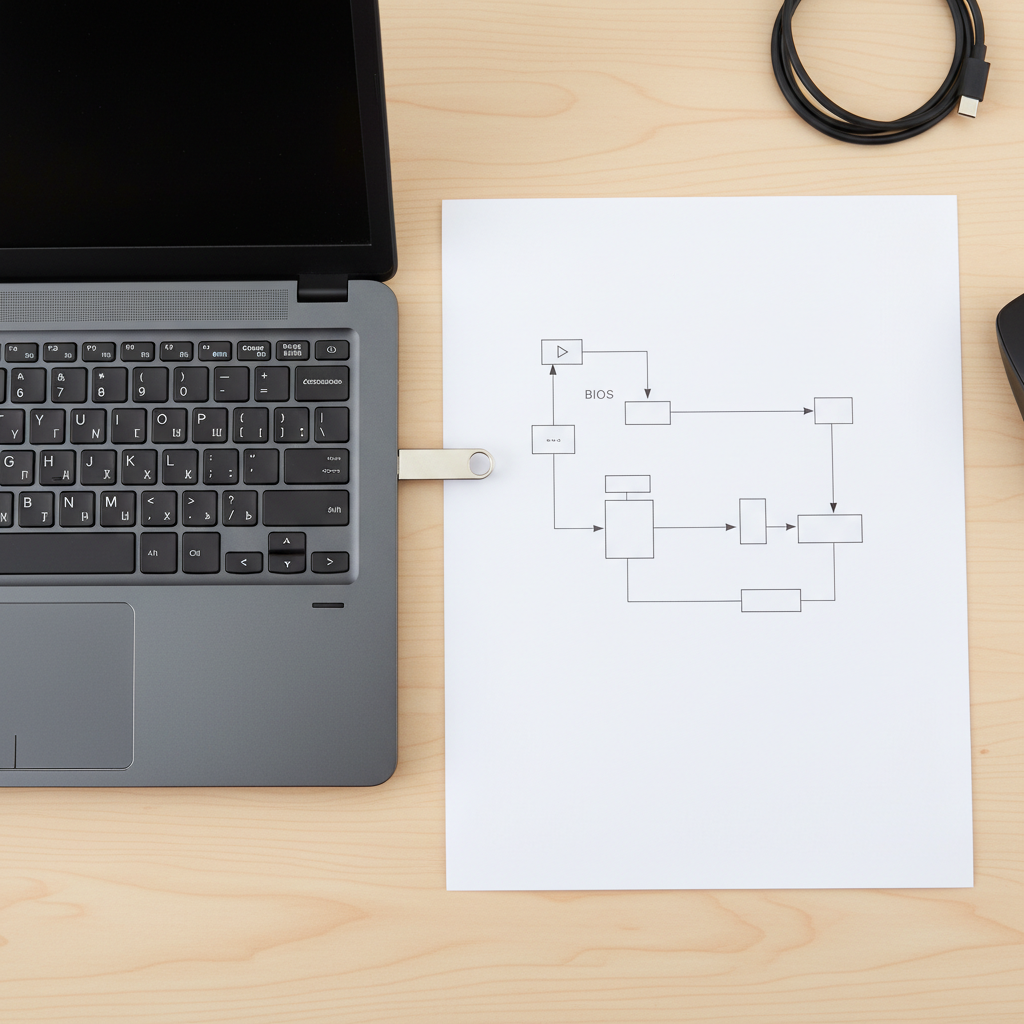
So you’ve heard about updating your computer’s BIOS, but what exactly are you getting into? Let’s break this down properly. BIOS (Basic Input/Output System) is basically the behind-the-scenes manager that gets your computer up and running every time you hit that power button. Think of it as your PC’s morning routine—checking that everything’s working, waking up all the hardware, and then handing control over to your operating system. Keeping your BIOS updated isn’t just tech maintenance busywork. It’s about making sure your computer plays nice with new hardware, stays stable, and doesn’t leave security holes wide open. Ready to understand what makes your computer tick?
Understanding BIOS and Its Role in Computer Functionality
Here’s what happens every time you boot up your PC: BIOS jumps into action before anything else. It runs what’s called POST (Power-On Self-Test)—essentially a health check for your processor, memory, and drives. No BIOS? No boot. It’s that simple. Your computer would just sit there like a very expensive paperweight. But BIOS doesn’t stop at health checks. It’s also the one finding your operating system and loading it into memory so you can actually use your computer. Plus, if you’re the type who likes to tinker with system settings—boot order, hardware parameters, power management—BIOS gives you that control. Want to understand how all this connects to your system’s memory? Check out how to upgrade PC RAM, since BIOS works closely with your memory components.
Now, why bother updating BIOS at all? Because your computer isn’t living in a vacuum. Manufacturers regularly push out BIOS updates to fix bugs that could crash your system, patch security vulnerabilities, and ensure your motherboard can handle newer hardware. Just bought a shiny new graphics card or SSD? A BIOS update might be exactly what you need to get everything working smoothly together. But here’s the thing—you shouldn’t update just because you can. Unnecessary BIOS updates can create problems, while skipping important ones leaves you vulnerable. The trick is knowing when it’s actually worth doing. Learning to check your current BIOS version and grab official updates safely will save you headaches down the road. For a broader look at what’s driving these technology updates, take a look at latest software development trends.
Key Aspects of BIOS and Firmware Function
Let’s get specific about what BIOS actually handles. These are the core functions that keep your computer running smoothly:
- Initial hardware checks (POST): Before your computer even thinks about booting, BIOS runs diagnostic tests on all your essential hardware. It’s like a pre-flight check that catches problems early, potentially saving you from startup failures and data loss.
- Boot process management: BIOS figures out where your operating system lives—whether that’s on a hard drive, SSD, or USB drive—and loads it up. This handoff from BIOS to OS needs to happen smoothly, or you’re stuck staring at error messages.
- System configuration settings: Want to change your boot priority or tweak hardware settings? BIOS gives you access to configure clock speeds, integrated hardware controls, and other vital system parameters. It’s your gateway to customizing how your computer behaves.
- Fixing bugs and vulnerabilities: BIOS updates aren’t just feature additions—they’re often security patches and bug fixes. Manufacturers discover firmware issues and release updates to keep your system stable and secure.
With that foundation solid, you’re ready for the next crucial step: preparing your computer for a BIOS update without breaking anything in the process.
Alright, so you understand what BIOS does. Now comes the part that makes people nervous—actually updating it. And honestly? A little nervousness is healthy here. BIOS updates can go wrong in spectacular ways if you’re not careful. Power cuts during the update, wrong firmware versions, sketchy download sources—any of these can turn your computer into an expensive doorstop. But don’t let that scare you off. The key is proper preparation. We’re talking about backing up your important stuff, double-checking your current BIOS version, and making absolutely sure you’re getting that update file from the manufacturer’s official website. Yeah, it might seem like overkill, but these steps are what separate a smooth update from a disaster recovery situation. Get the prep work right, and you’ll tackle the actual update with confidence.
Preparing Your Computer and Executing BIOS Updates Safely
Before you even think about starting a BIOS update, let’s talk about covering your bases. First up: backup everything important. I’m not talking about just your family photos (though definitely those too). Back up your system settings, important files, the works. Because if something goes sideways during the update, you want options. Next, figure out what BIOS version you’re currently running. You can usually find this in your system information or right on the BIOS startup screen. This isn’t just curiosity—it tells you whether you actually need an update or if you’re already running the latest version. And here’s a non-negotiable rule: only download BIOS updates from your motherboard or computer manufacturer’s official website. Not some random forum post, not a “helpful” third-party site. Official sources only. Period. Want to keep your hardware in top shape overall? Consider learning how to clean your laptop keyboard as part of your regular maintenance routine.
When it comes to actually updating your BIOS, you’ve got two main routes. Most manufacturers provide Windows-based utilities that handle the update from within your operating system. Pretty straightforward, but make sure you’re plugged into reliable power—no battery updates, no sketchy power strips. The other option is creating a bootable USB drive with the update files and running the update outside of Windows entirely. This method is often more reliable since there’s less that can interfere with the process. Whichever route you choose, stick to the manufacturer’s instructions like your computer’s life depends on it (because it kind of does). And whatever you do, don’t multitask during the update. No checking email, no browsing the web, no nothing. Just let it do its thing. Oh, and never—and I mean never—turn off your computer or unplug it during a BIOS update. That’s a fast track to a very expensive repair bill. Curious about how firmware updates impact other devices? Check out this piece on technology in smart homes to see the bigger picture.
Key Steps and Precautions in BIOS Updating
BIOS updating isn’t something you wing. Here are the essential steps and safety measures you absolutely need to follow:
- Backup important data: Create a complete backup of your critical files and system configurations before starting. If the update fails or creates problems, you’ll have a way back to your working setup.
- Verify BIOS version: Always check what version you’re currently running before downloading anything. This prevents unnecessary updates and ensures you’re not trying to install incompatible firmware.
- Download from official sources: Get your BIOS update files exclusively from your hardware manufacturer’s official website. This protects you from malware and ensures you’re getting legitimate, tested firmware.
- Power stability: Use an uninterruptible power supply (UPS) or make sure you’re connected to stable power. A power outage during a BIOS update can permanently damage your motherboard’s firmware.

Here’s the thing about your computer’s BIOS—it’s basically the behind-the-scenes conductor of your entire system. Think of it as the firmware that gets everything talking to each other before your operating system even shows up to the party. And keeping it updated? That’s not just techie busywork. We’re talking about real benefits: better compatibility with new hardware, fewer bugs causing headaches, and protection against security threats that could leave your system vulnerable. When you really understand how your BIOS works, you start to see the bigger picture of what’s happening under the hood every time you hit that power button.
Now, before you dive into any BIOS update, let’s talk preparation—because this isn’t the time to wing it. First things first: back up everything important. I mean everything. Then double-check your current BIOS version to make sure you actually need this update (sometimes you don’t). When you’re ready to download the update files, stick to your manufacturer’s official website only. No sketchy third-party sites, no matter how convenient they seem. The actual update process? You’ve got options—manufacturer Windows utilities or bootable USB drives both work great. Just remember: keep that power stable throughout the whole process and follow every instruction to the letter. Trust me, an incomplete BIOS update is not a problem you want to deal with.
Ready to put this knowledge into action? Start with those comprehensive backups we talked about—seriously, don’t skip this step. Check your current BIOS version using your system tools, and if an update is available, grab it straight from your manufacturer’s support page. While you’re in upgrade mode, why not tackle some other improvements? Our guide on how to upgrade computer RAM pairs perfectly with BIOS updates—more memory means better multitasking and overall snappier performance. And don’t forget about how to update computer drivers. Keeping your drivers current alongside your BIOS ensures everything plays nicely together. For those feeling ambitious, check out our comprehensive guide on how to upgrade your computer CPU—when combined with a fresh BIOS, you’re looking at some serious performance gains. And if you’re curious about where all this tech is heading, take a look at the latest software development trends in 2024 to see what’s shaping the future of computing.
You’ve got the knowledge, you’ve got the resources—now it’s time to make it happen. Look, updating your BIOS might feel a bit intimidating at first (and honestly, that’s normal), but the step-by-step approach we’ve covered here makes it totally manageable. Each successful update builds your confidence and adds to your tech toolkit. Your computer’s BIOS is literally the foundation of everything else, so keeping it current means smoother performance, better security, and you’ll be ready when that next hardware upgrade calls your name. The time you invest in understanding and maintaining your BIOS today pays dividends in reliability and peace of mind down the road.
Frequently Asked Questions
-
What is BIOS?
- BIOS is the firmware interface between your computer’s hardware and operating system that initializes hardware during startup.
-
How do I check my current BIOS version?
- You can check it via system information tools or during computer startup screen prompts.
-
Is it safe to update the BIOS?
- Yes, if you follow the manufacturer’s instructions carefully and prepare properly.
-
What should I do if my BIOS update fails?
- Try recovery steps provided by the manufacturer or seek professional assistance.
-
Can I update BIOS myself?
- Yes, if you have technical knowledge and follow all guidelines carefully; otherwise, consult a professional.


